📋 Table of Contents
🎯 Theme Overview
ZayXYZ is a modern, responsive WooCommerce WordPress theme designed for e-commerce websites. It features a clean design, advanced customization options, and developer-friendly architecture.
Responsive Design
Fully responsive across all devices
WooCommerce Ready
Full WooCommerce integration
Fast Performance
Optimized for speed and SEO
Easy Customization
Extensive customization options
🔧 System Requirements
Minimum Requirements
- WordPress: 5.0 or higher
- PHP: 7.4 or higher
- MySQL: 5.6 or higher
- Memory Limit: 128MB
Recommended Requirements
- PHP: 8.0 or higher
- MySQL: 8.0 or higher
- Memory Limit: 256MB or higher
- Execution Time: 300 seconds
Required Plugins
- WooCommerce - For e-commerce functionality (version 5.0 or higher)
- Kirki Customizer Framework - For advanced theme customization (version 4.0 or higher)
📥 Importing Demo Content, Widgets, and Customizer Settings
To make your website look exactly like the demo, please follow the steps below carefully:
Import Demo Content (Pages, Posts, Menus, Products, etc.)
- Go to your WordPress Dashboard → Tools → Import
- Select WordPress (install the importer if not already installed)
- Click Run Importer
- Upload the file:
demo/demo-content.xml - Assign authors as needed, check "Download and import file attachments", then click Submit
Import Widgets
- Install and activate the plugin: Widget Importer & Exporter
(You can find it from Plugins → Add New) - Go to Tools → Widget Importer & Exporter
- Click Choose File and select:
demo/widgets.wie - Click Import Widgets
Import Customizer Settings
- Install and activate the plugin: Customizer Export/Import
- Go to Appearance → Customize
- Scroll down and click on Export/Import (you'll see a new tab)
- Click Choose File and select:
demo/customizer.dat - Check the box for "Download and import image files"
- Click Import
- If you encounter any issue during import, make sure:
- Your server allows file uploads of at least 2MB
- You have installed all required plugins before importing
- You imported in the same order: Content → Widgets → Customizer
🚀 Installation Guide
Upload Theme Files
Choose one of the following methods:
- Via WordPress Admin: Go to Appearance → Themes → Add New → Upload Theme
- Via FTP: Upload the theme folder to
wp-content/themes/
Activate Theme
Navigate to Appearance → Themes and click "Activate" on the ZayXYZ theme.
Install Required Plugins
Install and activate the following plugins:
- WooCommerce - For e-commerce functionality
- Kirki Customizer Framework - For advanced customization
⚙️ Initial Setup
Essential Configuration
Configure Site Identity
Go to Appearance → Customize → Site Identity to set your logo, site title, and tagline.
Set Up Menus
Create and assign menus for:
- Primary Menu (Header)
- Footer Menu
- Mobile Menu
Configure Widgets
Add widgets to sidebar and footer areas through Appearance → Widgets.
WooCommerce Setup
Required WooCommerce Pages
- Shop Page
- Cart Page
- Checkout Page
- My Account Page
- Terms and Conditions Page
🎨 Customization Guide
Theme Customizer
Access the theme customizer at Appearance → Customize to modify:
- Colors: Primary, secondary, and accent colors
- Typography: Font families and sizes
- Layout: Container width and sidebar position
- Header: Logo, menu, and header style
- Footer: Footer content and layout
Custom CSS
Add custom CSS through Appearance → Customize → Additional CSS:
/* Example: Custom button styling */
.add-to-cart-button {
    background: linear-gradient(45deg, #667eea, #764ba2);
    border: none;
    color: white;
    padding: 12px 24px;
    border-radius: 25px;
    font-weight: 600;
    transition: all 0.3s ease;
}

.add-to-cart-button:hover {
    transform: translateY(-2px);
    box-shadow: 0 5px 15px rgba(102, 126, 234, 0.3);
}
Child Theme Development
For advanced customization, create a child theme:
/*
Theme Name: ZayXYZ Child
Template: zayxyz
*/

/* Add your custom styles here */
🛒 WooCommerce Setup
Basic Configuration
- Set up your store location and currency
- Configure payment methods
- Set up shipping zones and methods
- Configure tax settings
Product Setup
Adding Products
- Go to Products → Add New
- Set product title and description
- Add product images
- Set price and inventory
- Assign categories and tags
- Publish the product
Custom Product Fields
Add custom fields to products using this code in functions.php:
// Add custom product field
function add_custom_product_field() {
    global $post;

    echo '<div class="product-custom-field">';
    echo '<label for="custom_field">Custom Field:</label>';
    echo '<input type="text" id="custom_field" name="custom_field" value="' .
         esc_attr(get_post_meta($post->ID, '_custom_field', true)) . '">';
    echo '</div>';
}
add_action('woocommerce_product_options_general_product_data', 'add_custom_product_field');

// Save custom field
function save_custom_product_field($post_id) {
    if (isset($_POST['custom_field'])) {
        update_post_meta($post_id, '_custom_field', sanitize_text_field($_POST['custom_field']));
    }
}
add_action('woocommerce_process_product_meta', 'save_custom_product_field');
💻 Development Guide
Theme Structure
zayxyz/
├── assets/          # CSS, JS, images
├── inc/            # PHP includes
├── woocommerce/    # WooCommerce templates
├── functions.php   # Theme functions
├── style.css       # Main stylesheet
├── index.php       # Main template
├── header.php      # Header template
├── footer.php      # Footer template
└── documentation/  # This documentation
Key Functions
// Register theme support
function zayxyz_theme_setup() {
    add_theme_support('woocommerce');
    add_theme_support('post-thumbnails');
    add_theme_support('custom-logo');
    add_theme_support('html5');
}
add_action('after_setup_theme', 'zayxyz_theme_setup');

// Enqueue scripts and styles
function zayxyz_scripts() {
    wp_enqueue_style('zayxyz-style', get_stylesheet_uri());
    wp_enqueue_script('zayxyz-script', get_template_directory_uri() . '/assets/js/main.js', array('jquery'), '1.0', true);
}
add_action('wp_enqueue_scripts', 'zayxyz_scripts');
Custom Hooks
// Add custom content before product summary
add_action('woocommerce_single_product_summary', 'custom_product_content', 5);

// Modify product loop
add_action('woocommerce_after_shop_loop_item_title', 'custom_product_info');

// Custom checkout fields
add_action('woocommerce_checkout_before_customer_details', 'custom_checkout_fields');
🔧 Troubleshooting
Common Issues
- Clear browser cache
- Deactivate all plugins temporarily
- Check for JavaScript errors in browser console
Debug Mode
Enable WordPress debug mode in wp-config.php:
define('WP_DEBUG', true);
define('WP_DEBUG_LOG', true);
define('WP_DEBUG_DISPLAY', false);
Performance Issues
- Optimize images before uploading
- Use a caching plugin
- Minimize plugin usage
- Optimize database regularly
📸 Visual Guide & Screenshots
🎯 Theme Installation & Setup
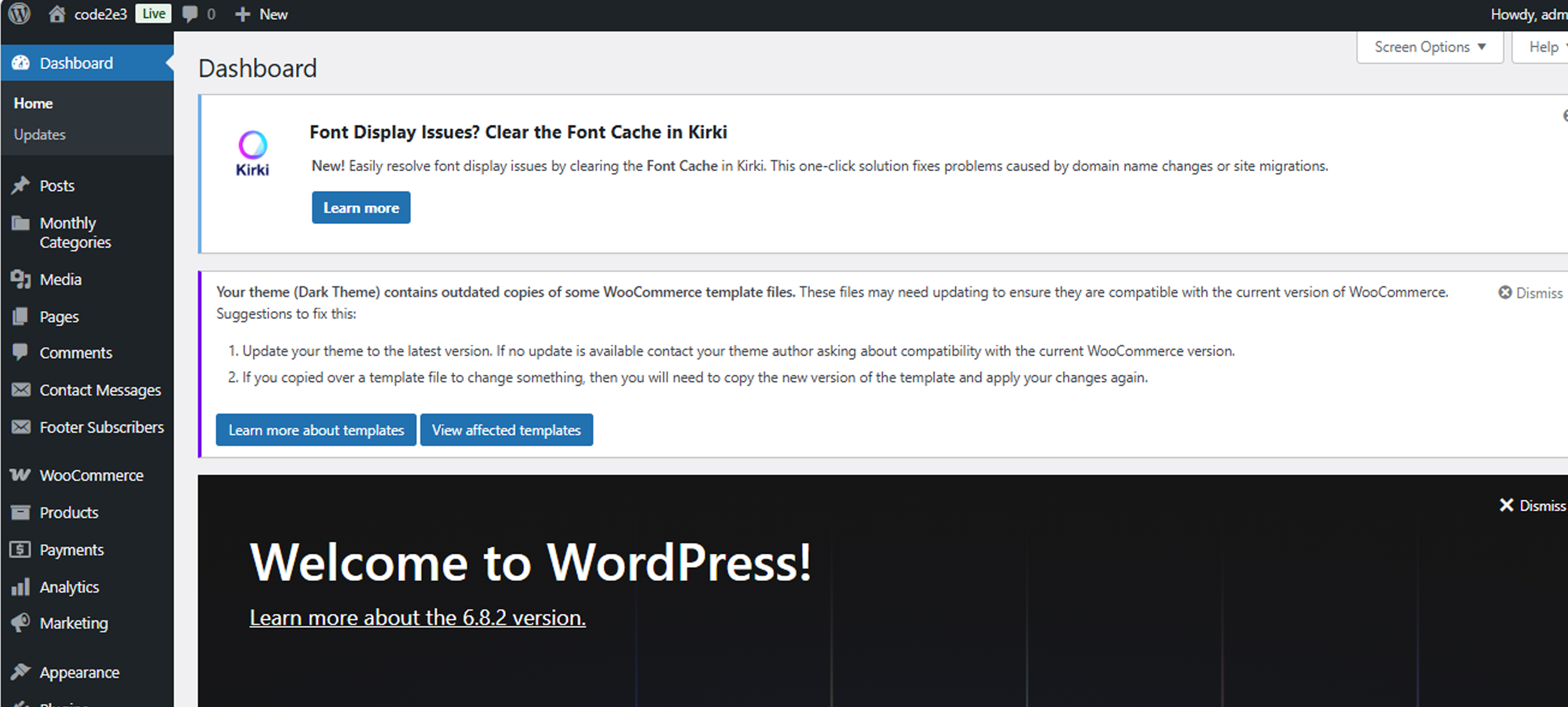
WordPress Dashboard
Access WordPress admin panel to install and activate the theme
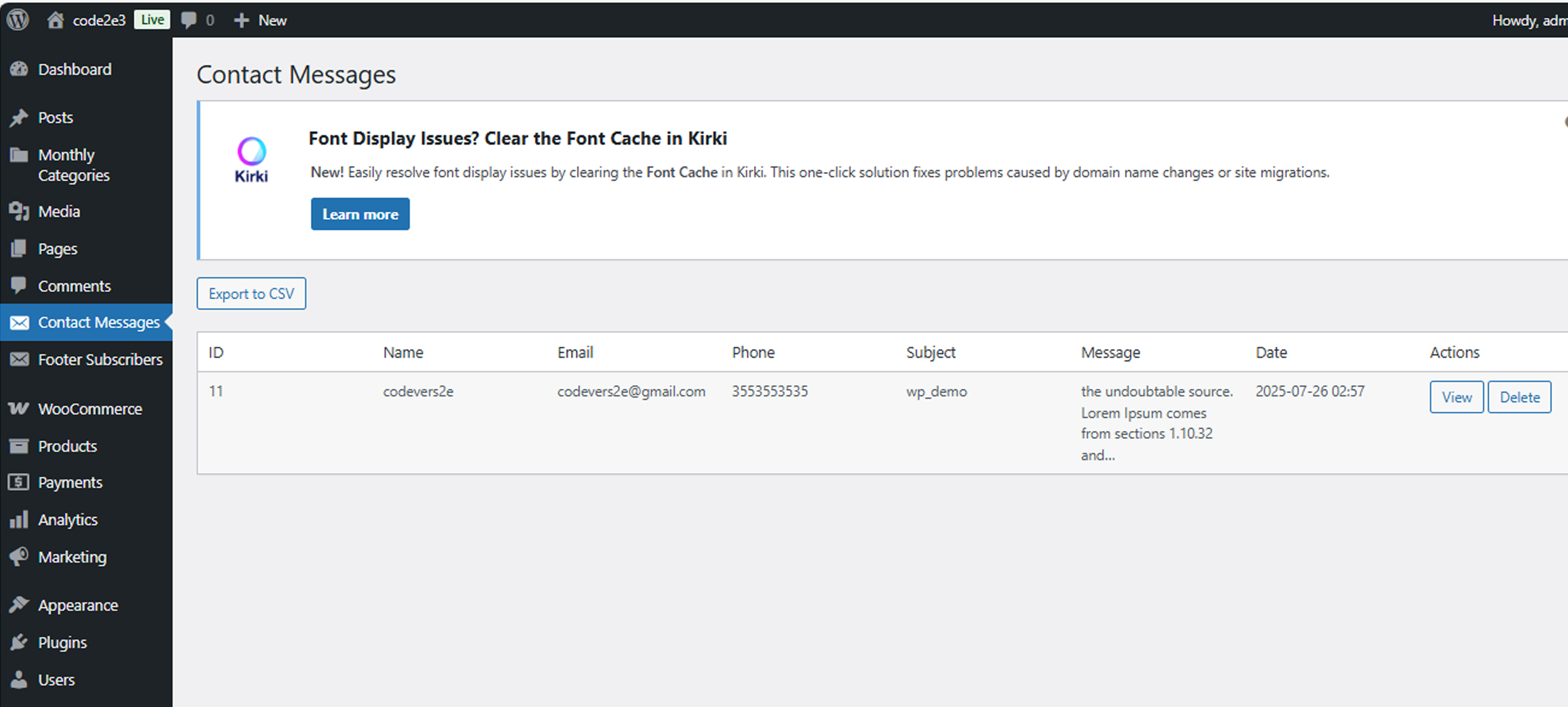
Theme Activation
Activate ZayXYZ theme from Appearance → Themes
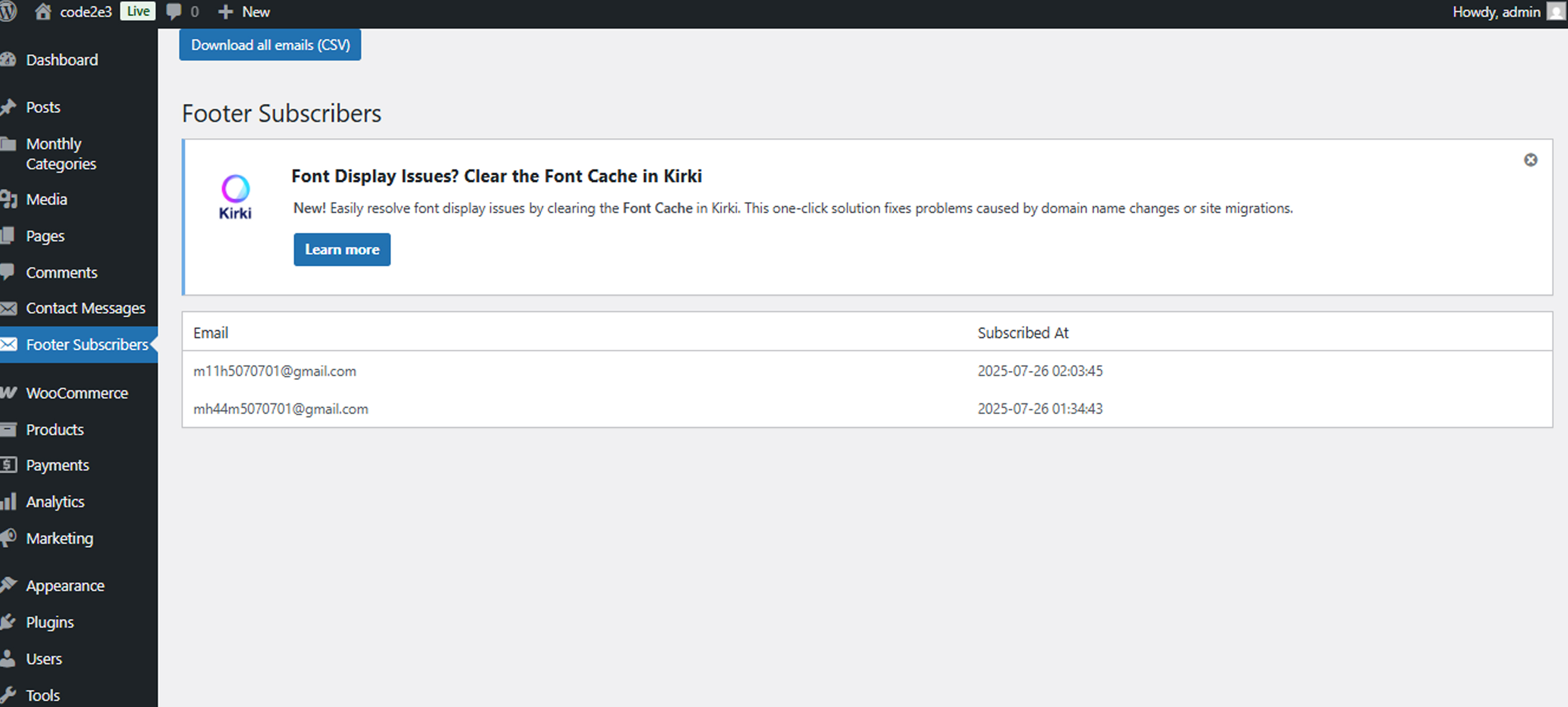
Plugin Installation
Install required plugins: WooCommerce and Kirki
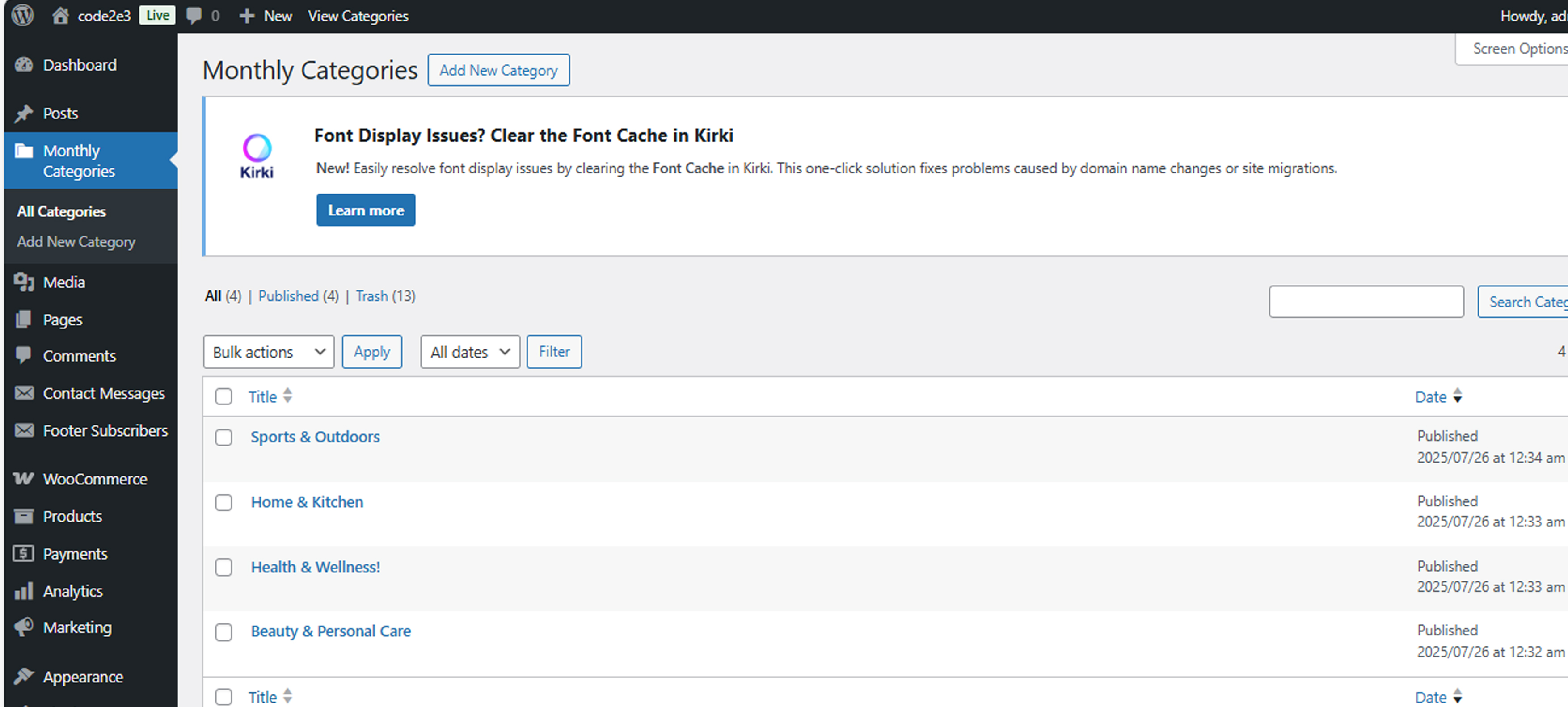
WooCommerce Setup
Configure WooCommerce settings for your store
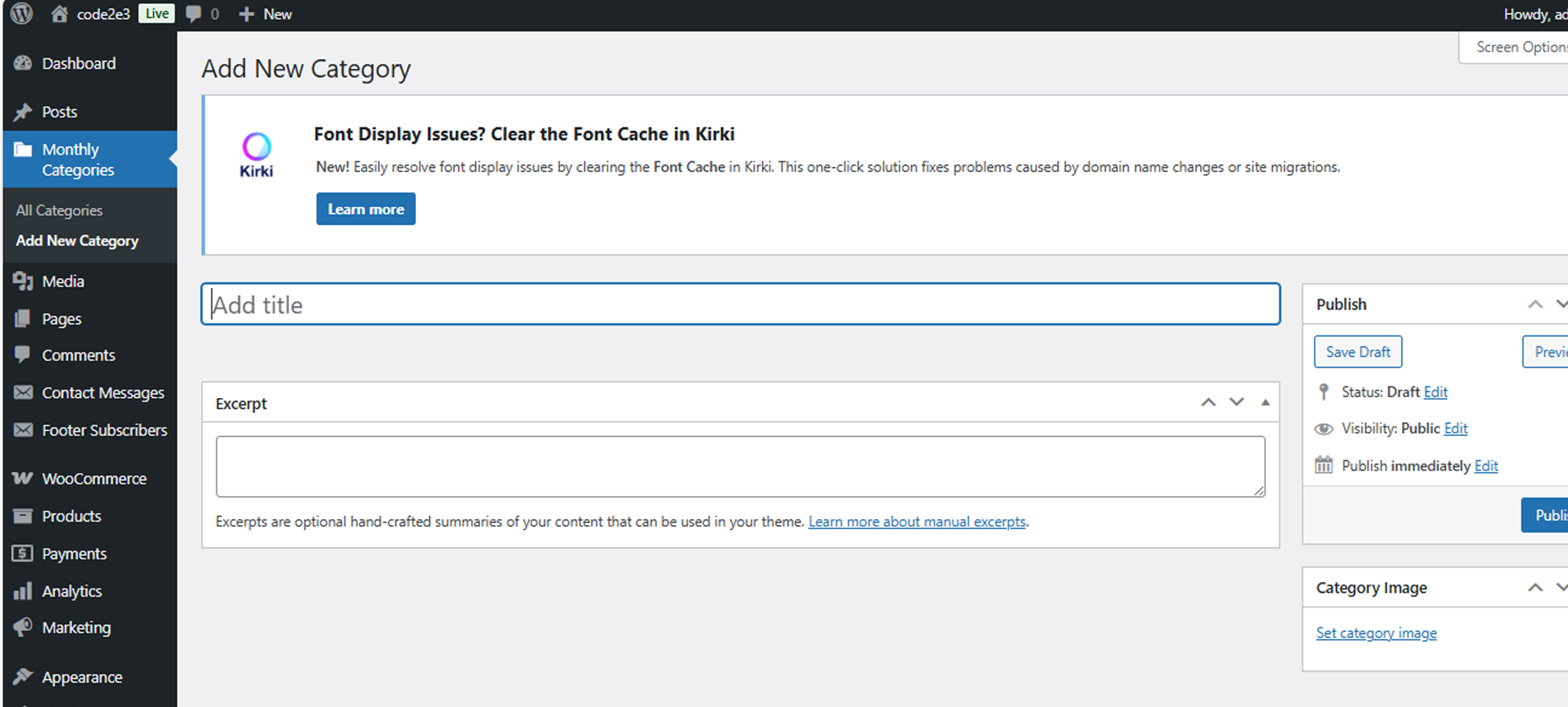
Store Configuration
Set up store location, currency, and payment methods
🎨 Theme Customization
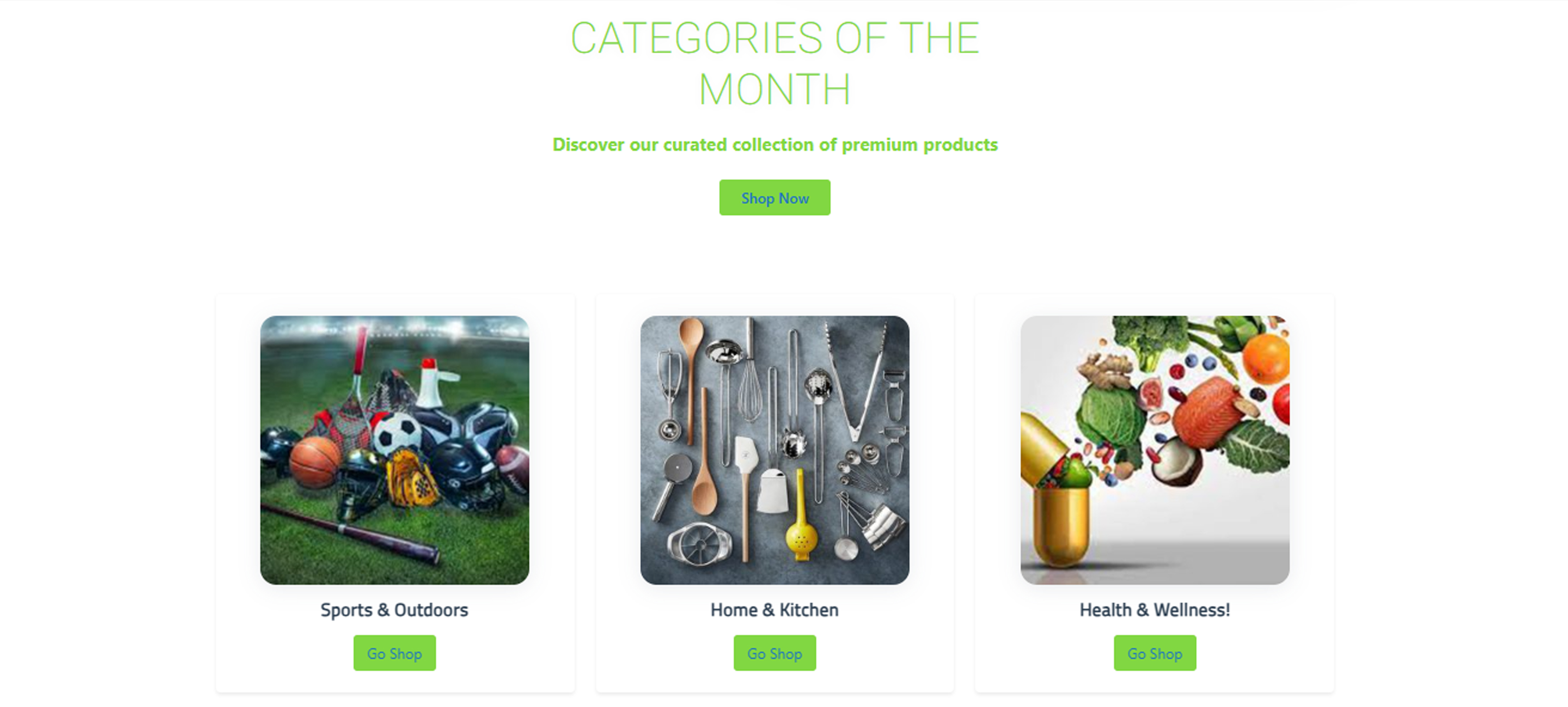
Color Settings
Customize theme colors and branding
Color Settings
Customize theme colors and branding
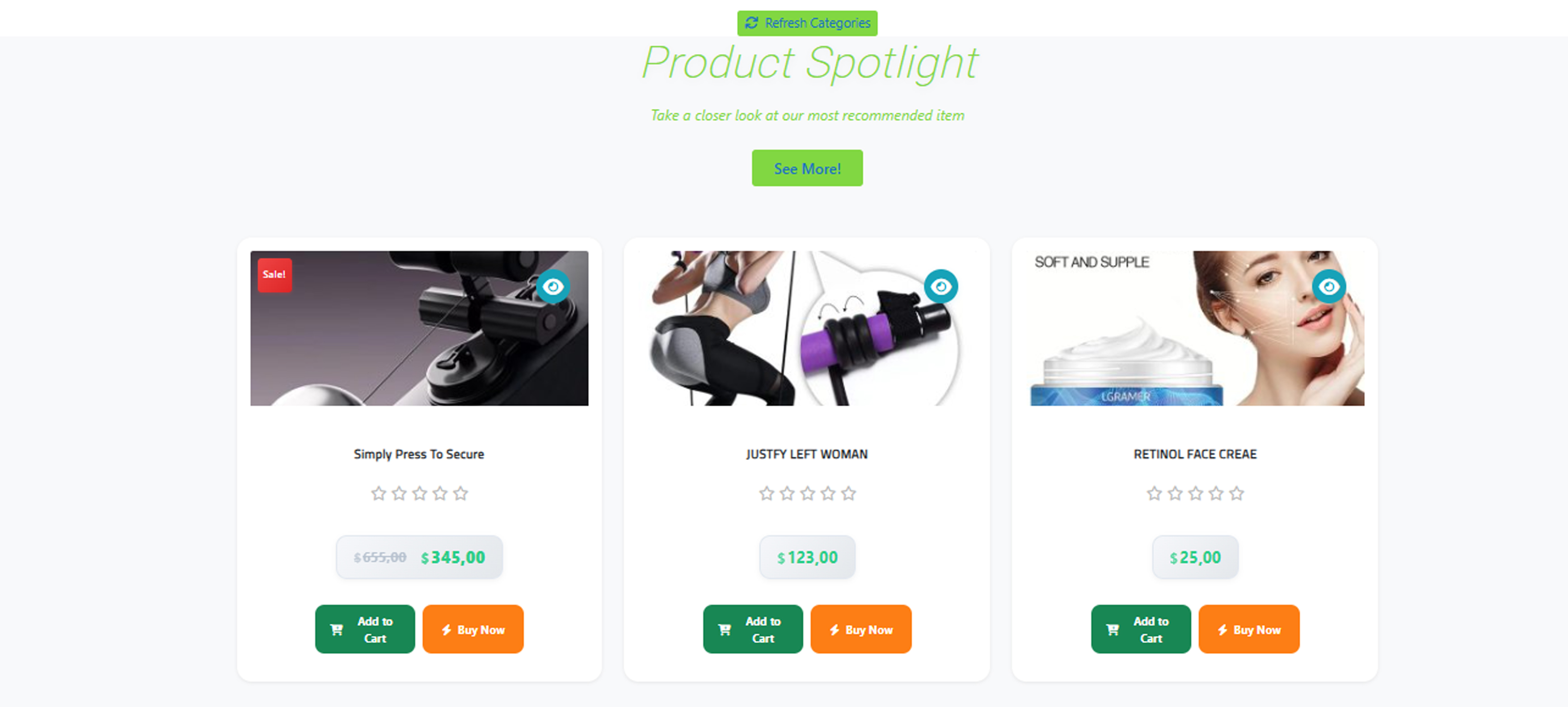
Typography Options
Choose fonts and text styling for your site
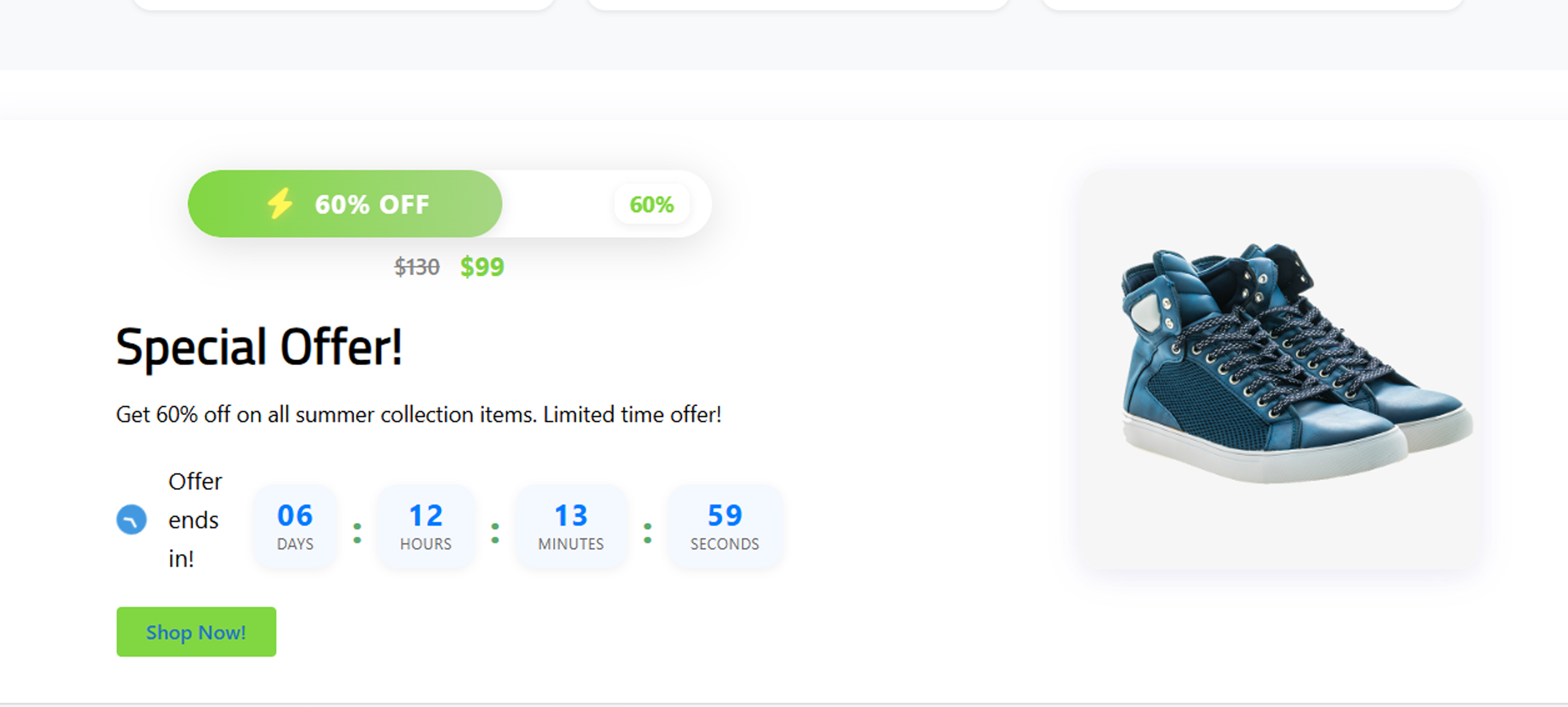
Layout Configuration
Adjust container width, sidebar position, and spacing
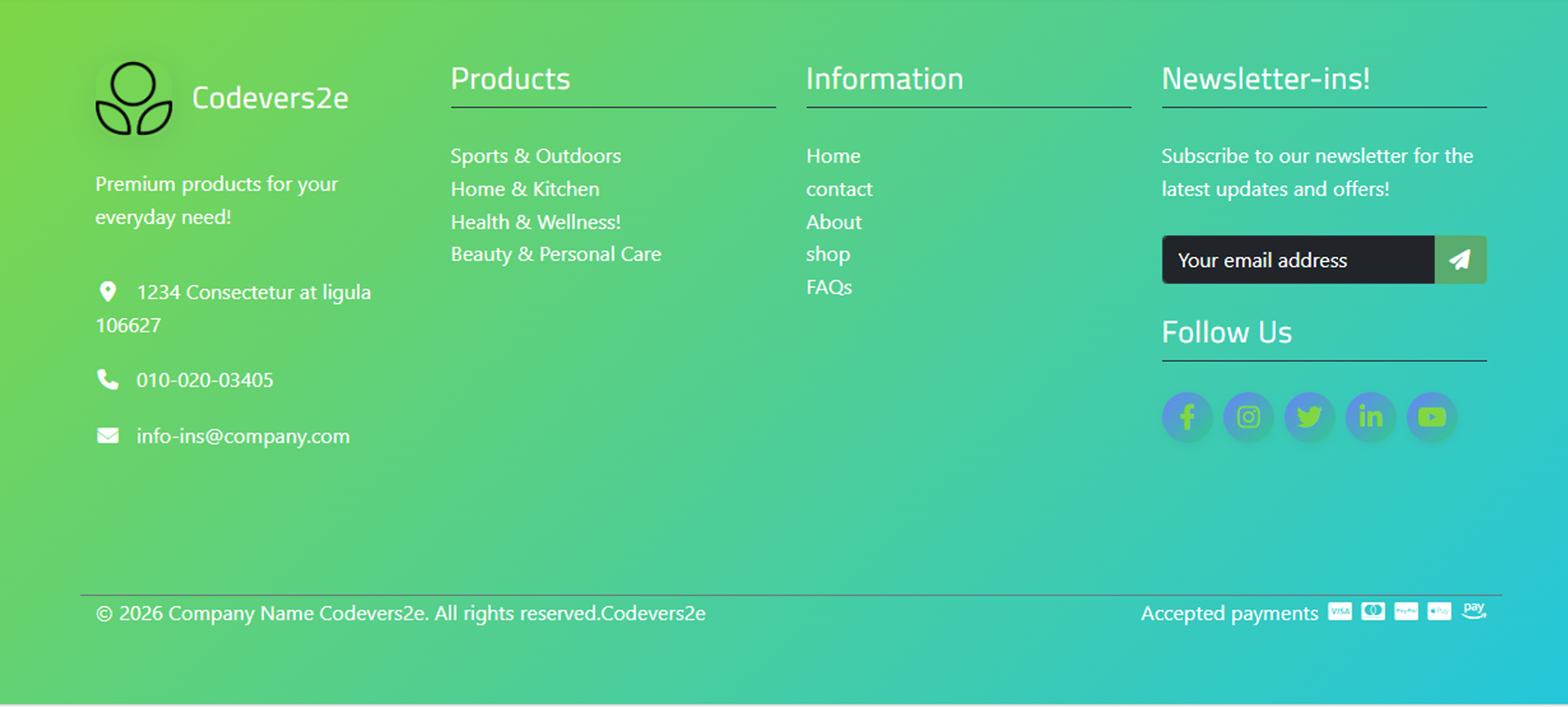
Header Settings
Customize header layout, logo, and navigation
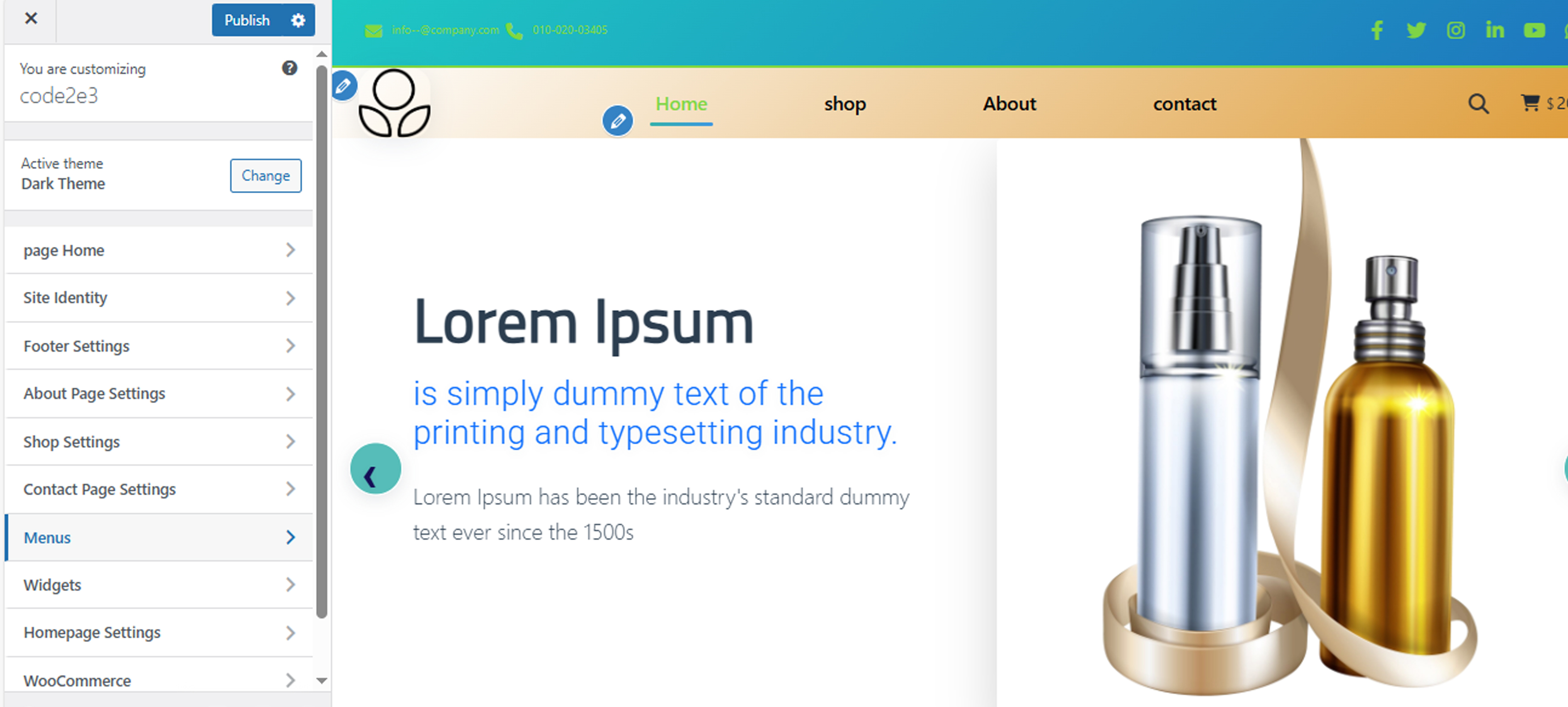
WordPress Customizer
Access theme customization options via Appearance → Customize
📱 Mobile Responsiveness
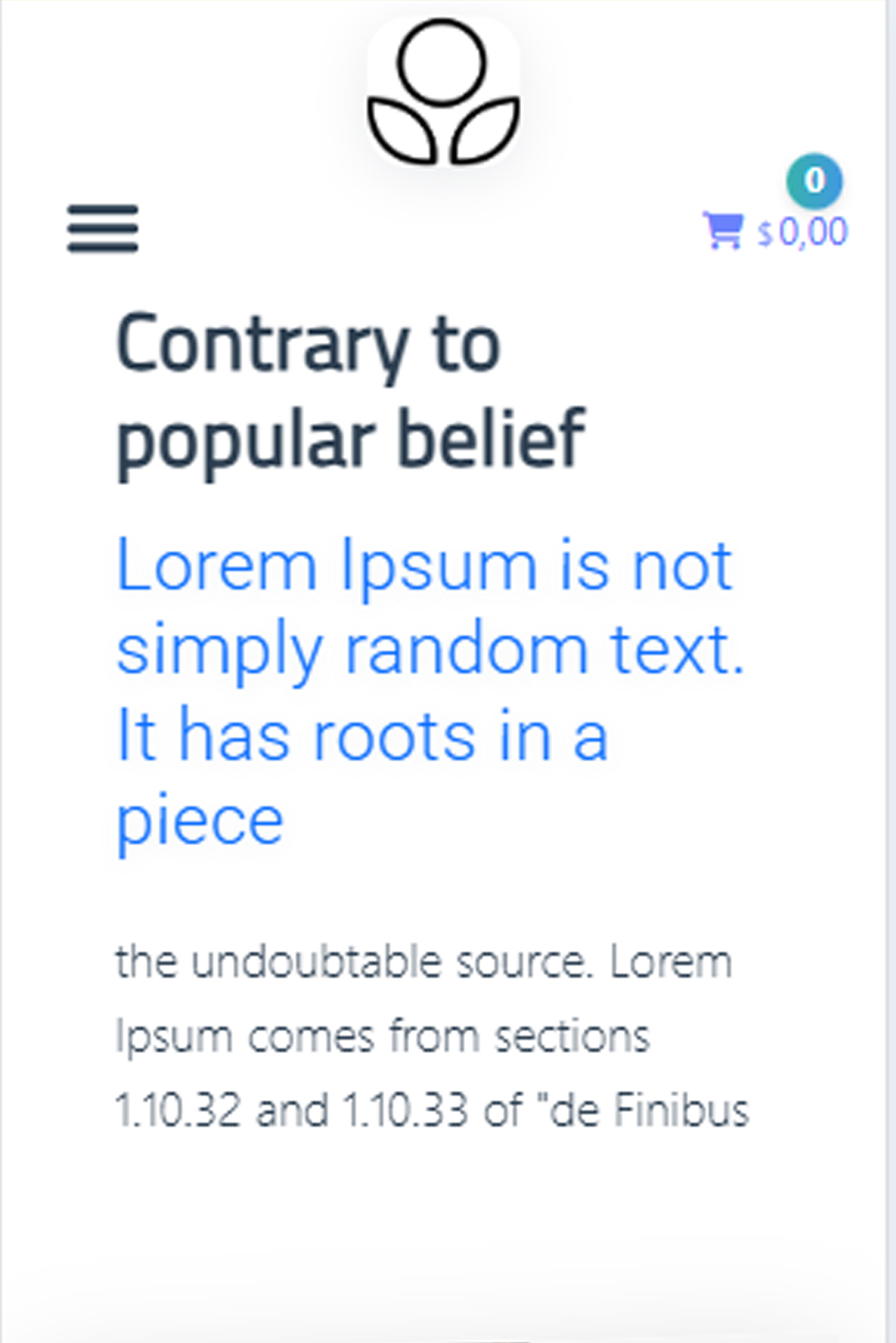
Mobile Homepage
Responsive design on mobile devices
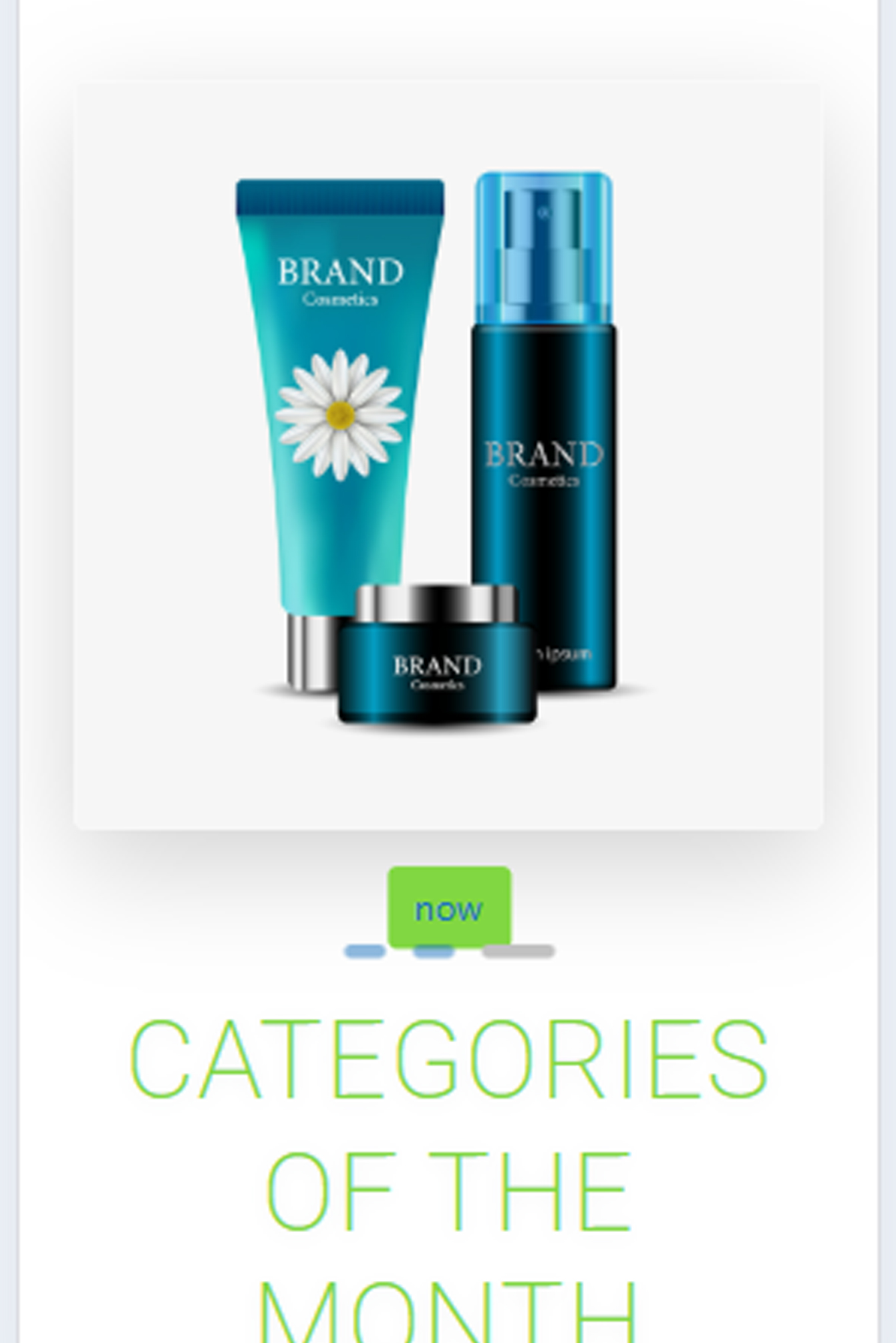
Mobile Navigation
Touch-friendly navigation menu

Mobile Product Page
Optimized product display on mobile
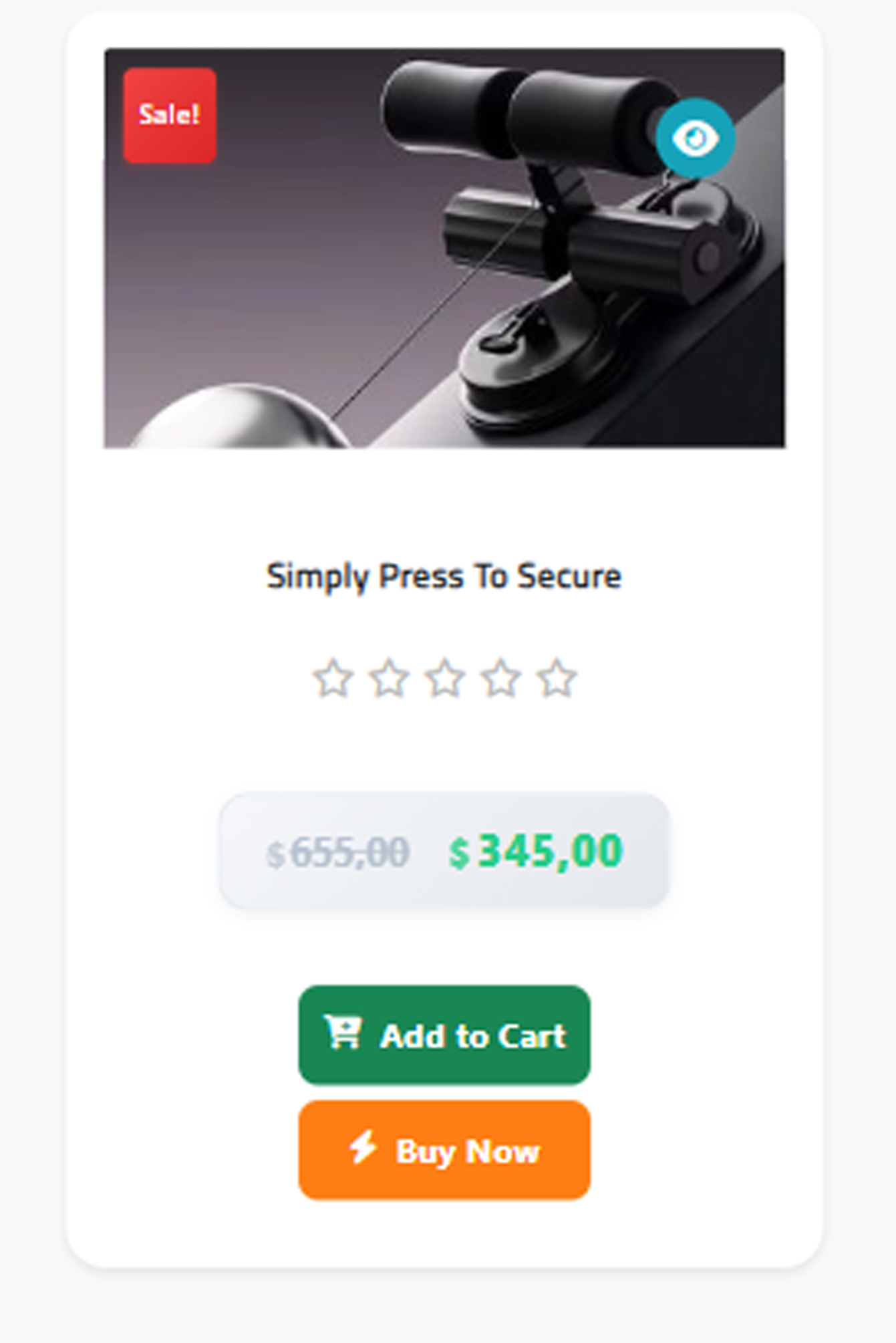
Mobile Shopping Cart
Easy cart management on mobile devices
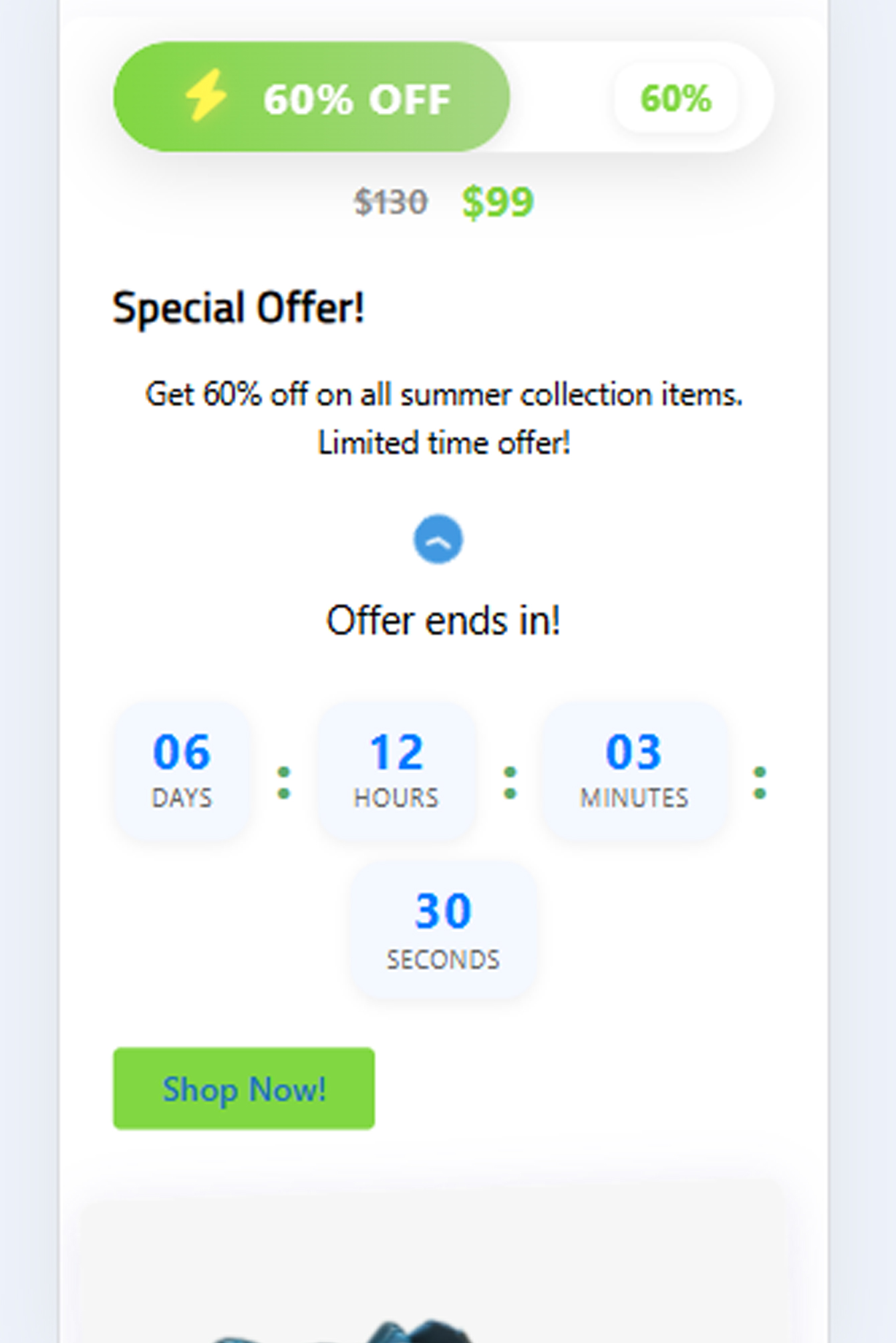
Mobile Checkout
Streamlined checkout process on mobile
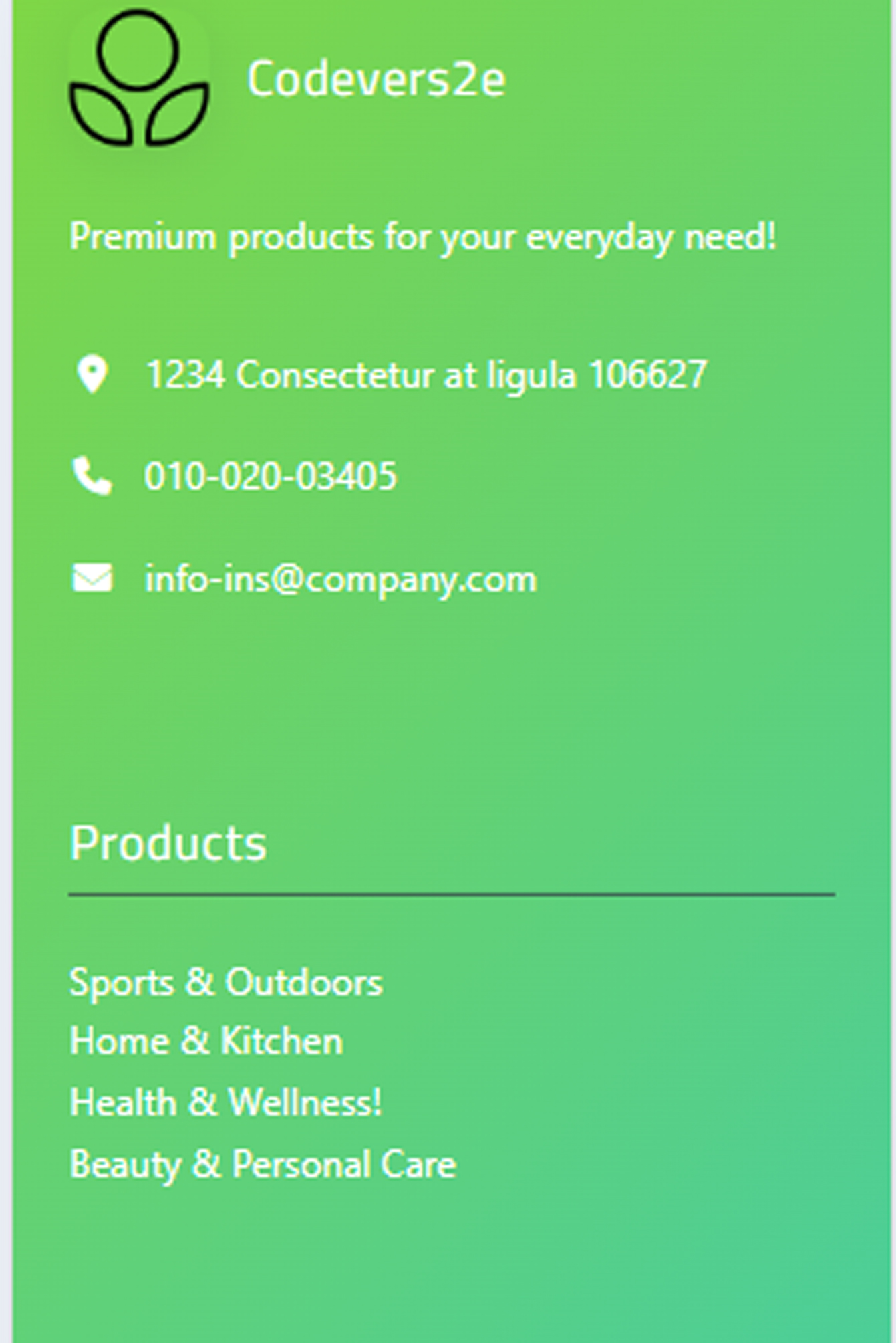
Mobile Account
User account management on mobile
🛒 WooCommerce Features
Shop Page Layout
Product grid with filtering options
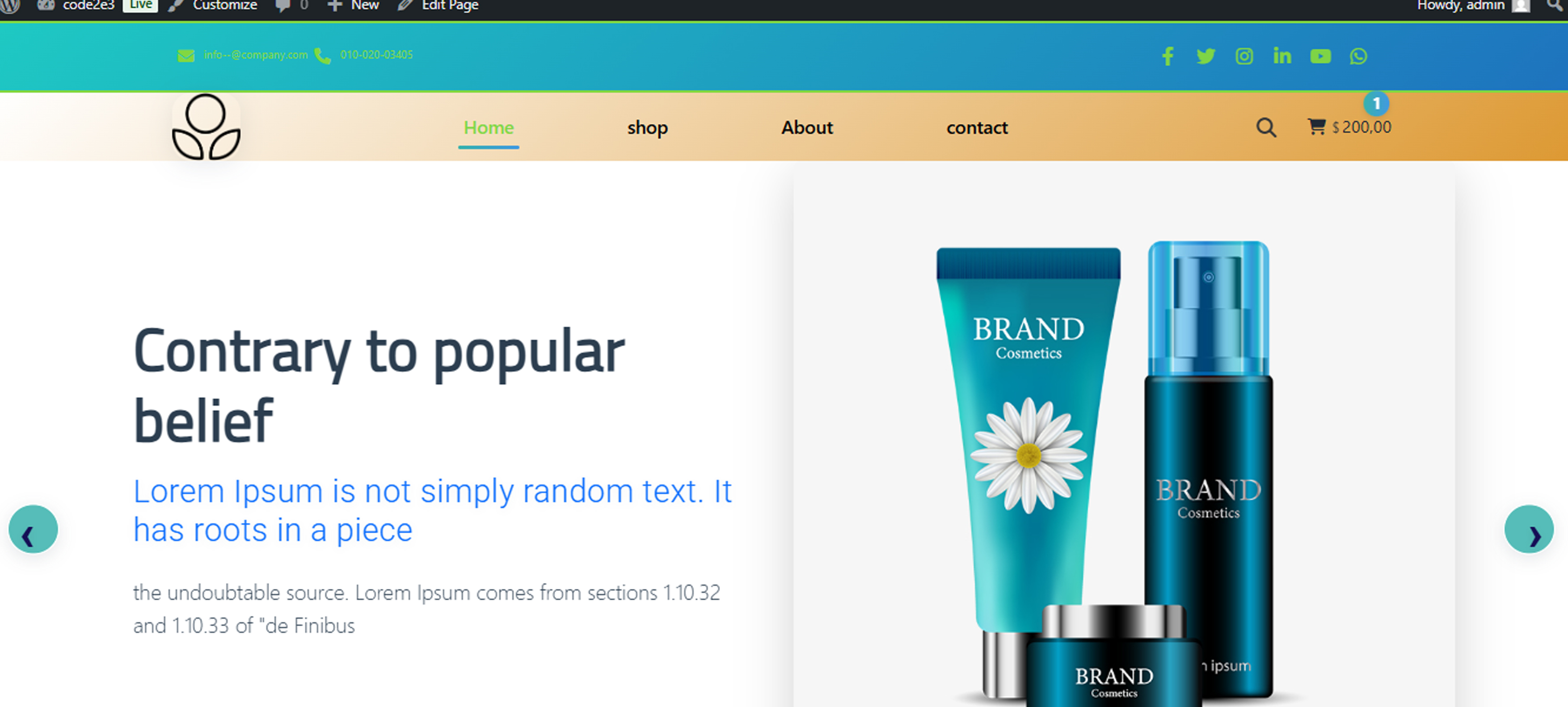
Product Detail Page
Detailed product information and gallery
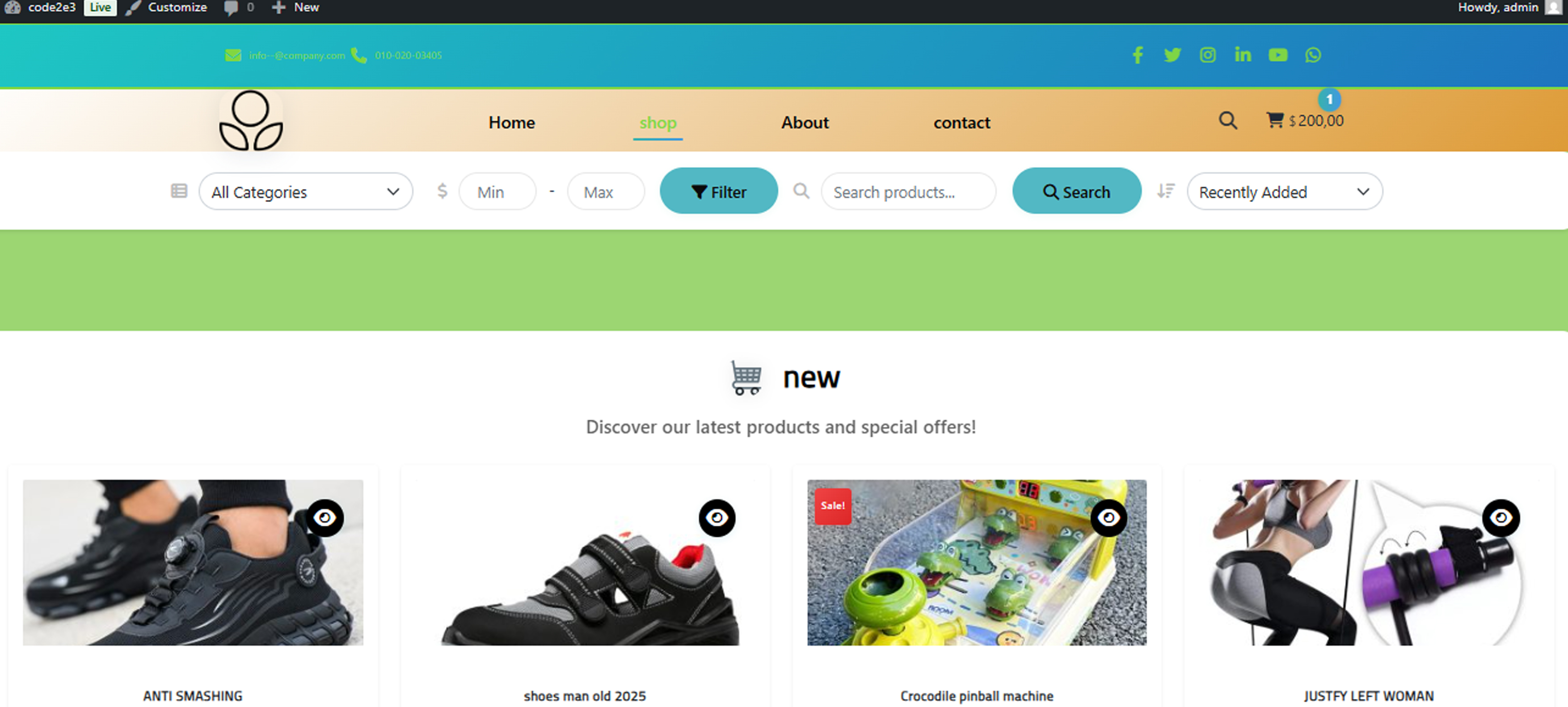
Shopping Cart
Cart management and checkout process
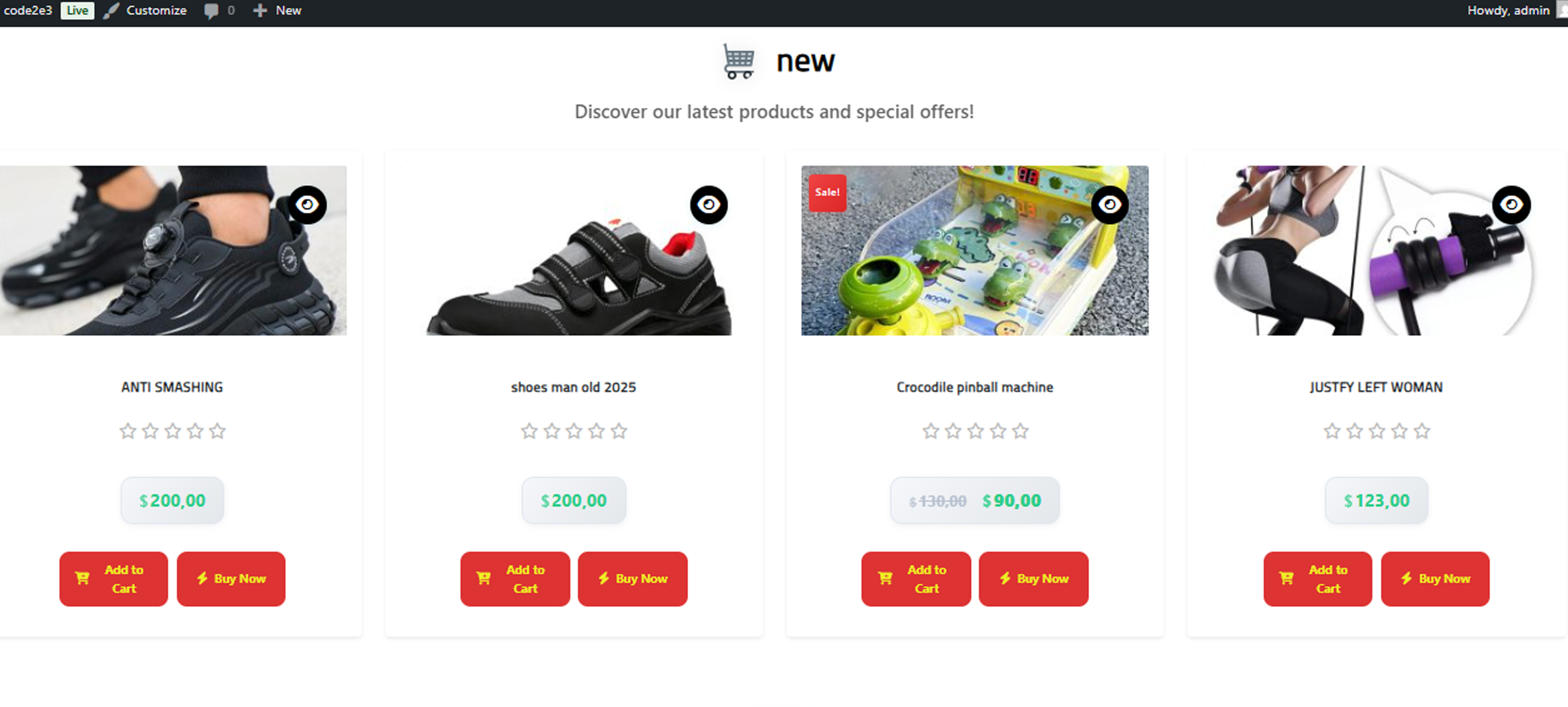
Checkout Process
Secure payment and order completion
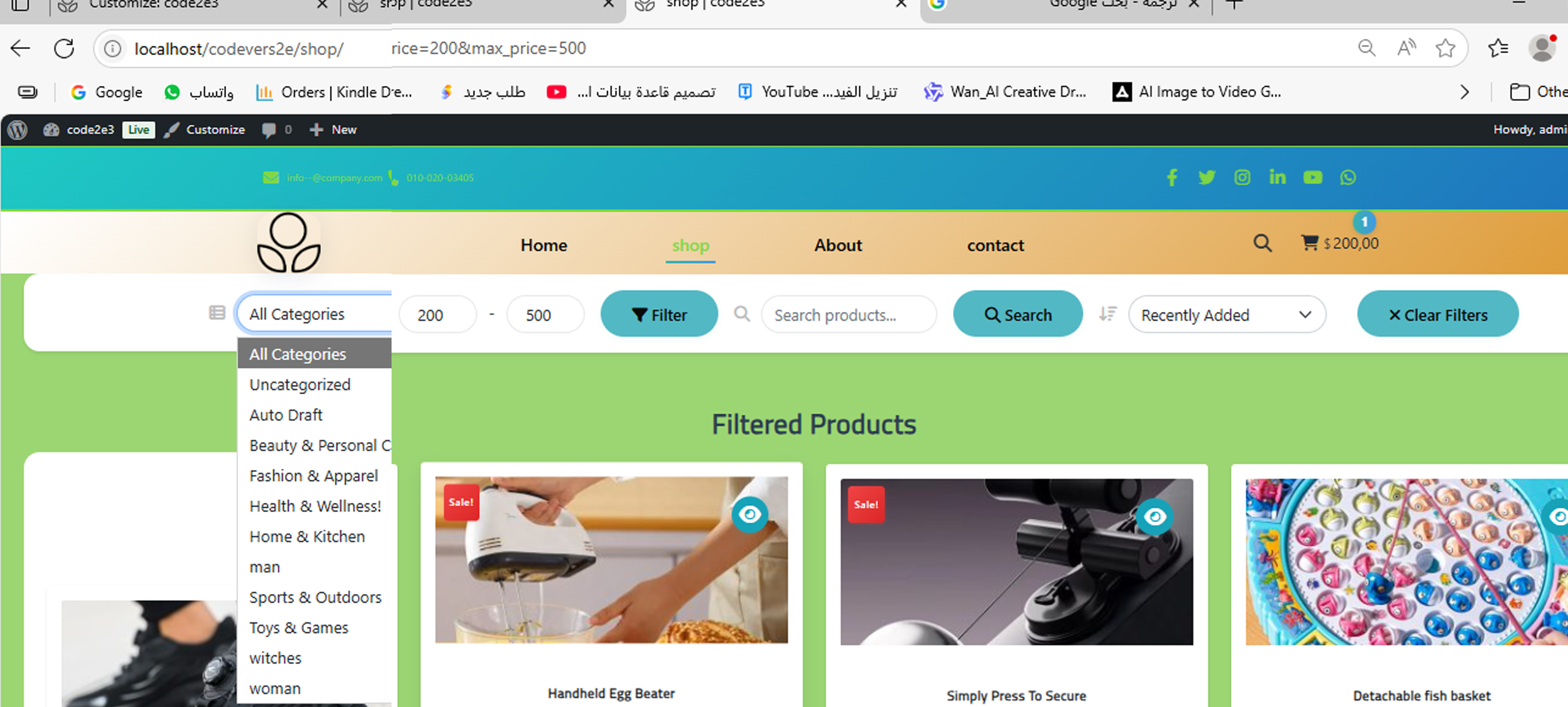
Order Confirmation
Order success and tracking information
📄 Page Templates
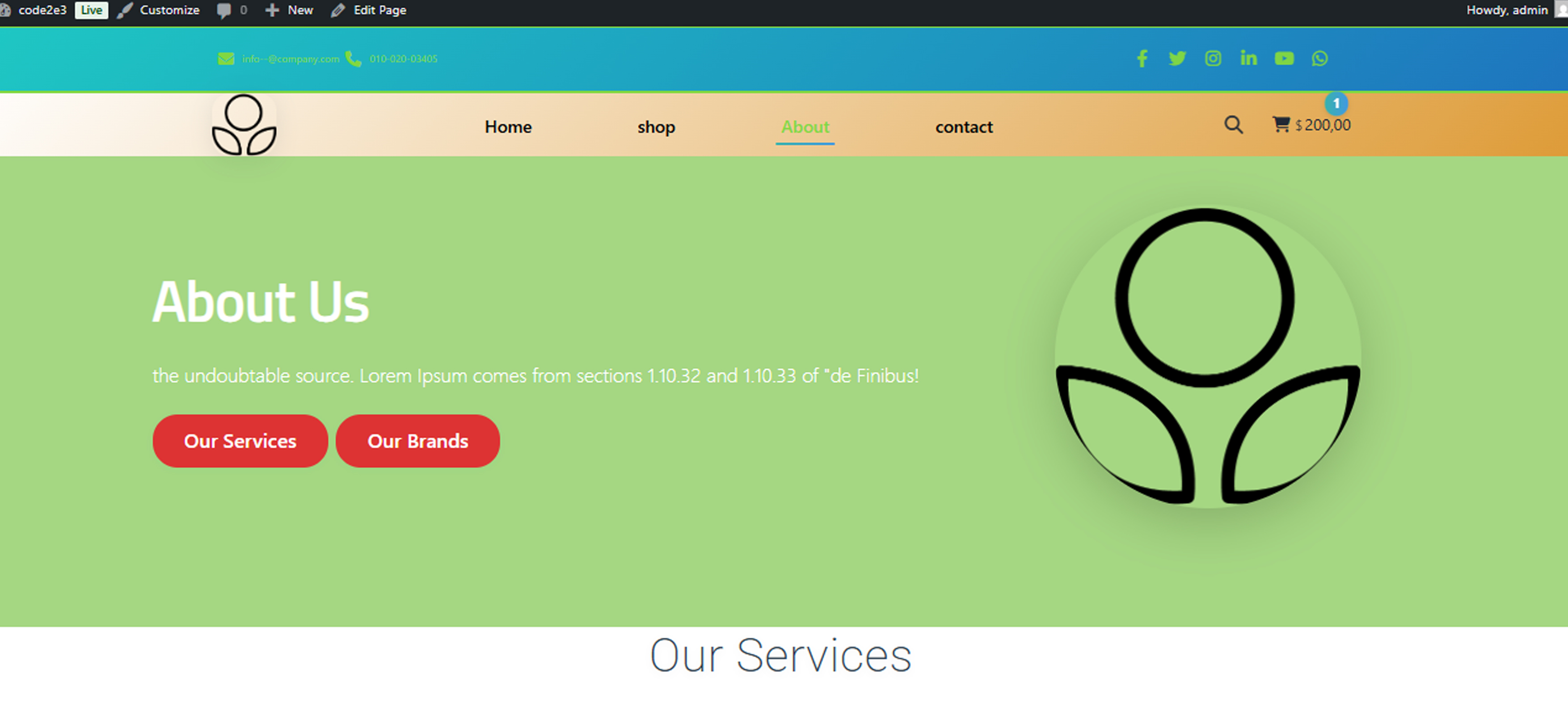
About Page Template
Company information and team details
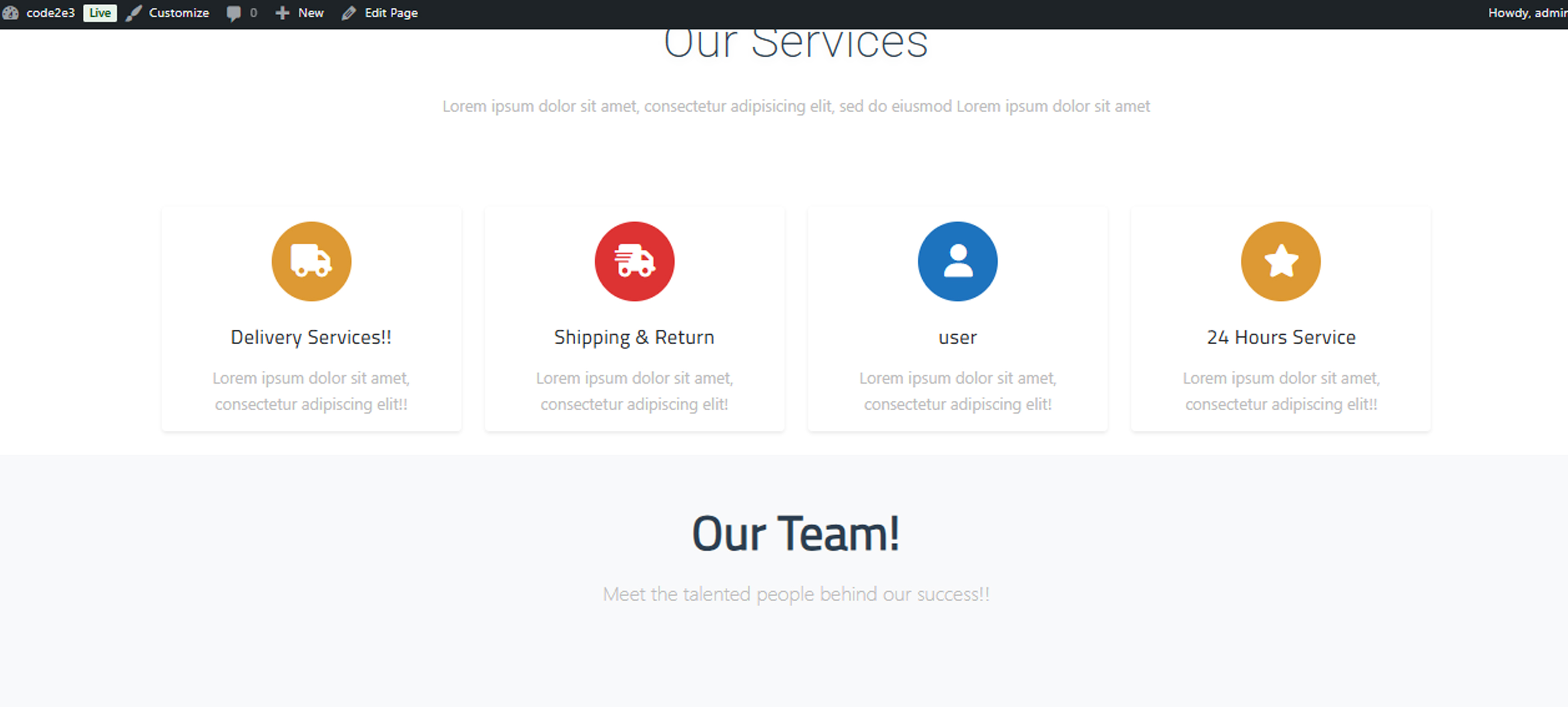
About Section
Mission, vision, and company values
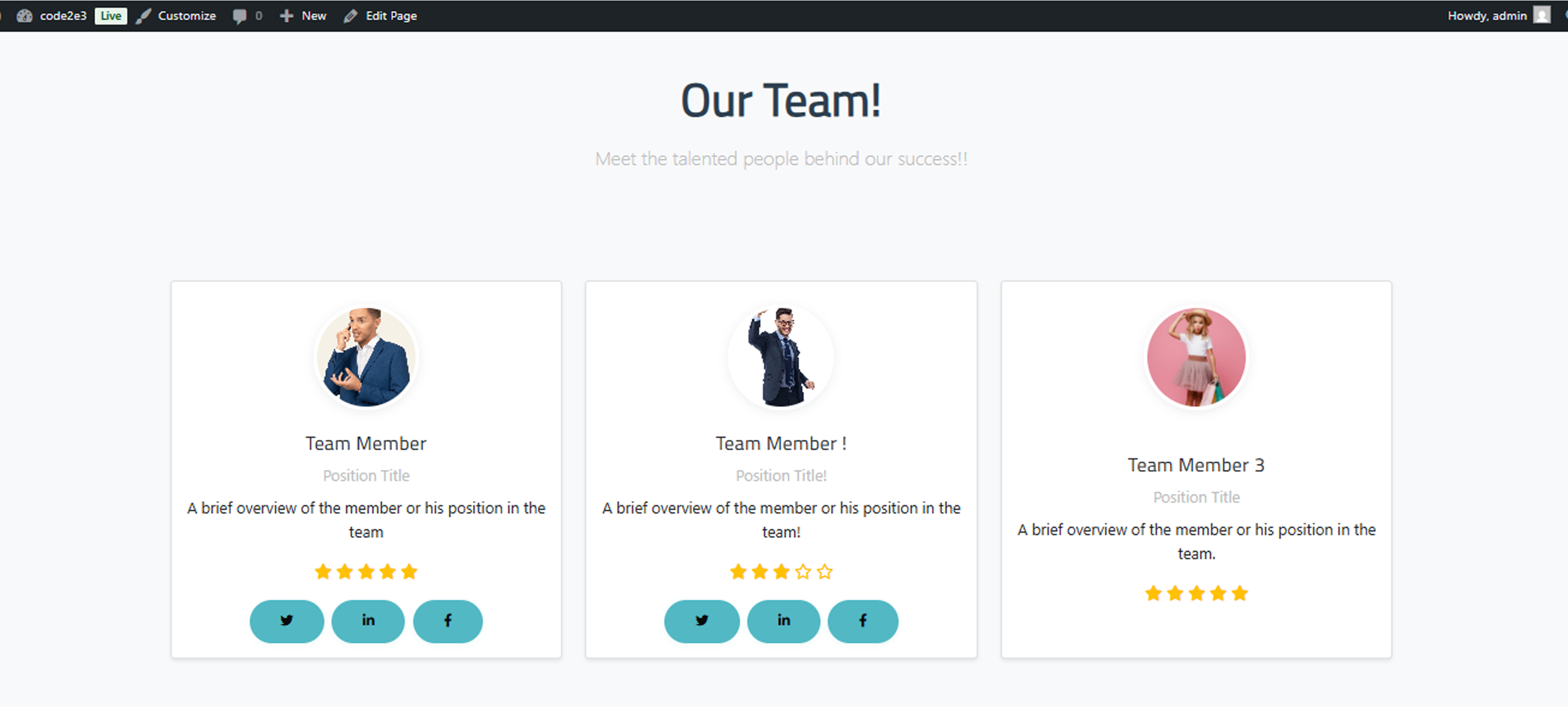
Services Section
Service offerings and features
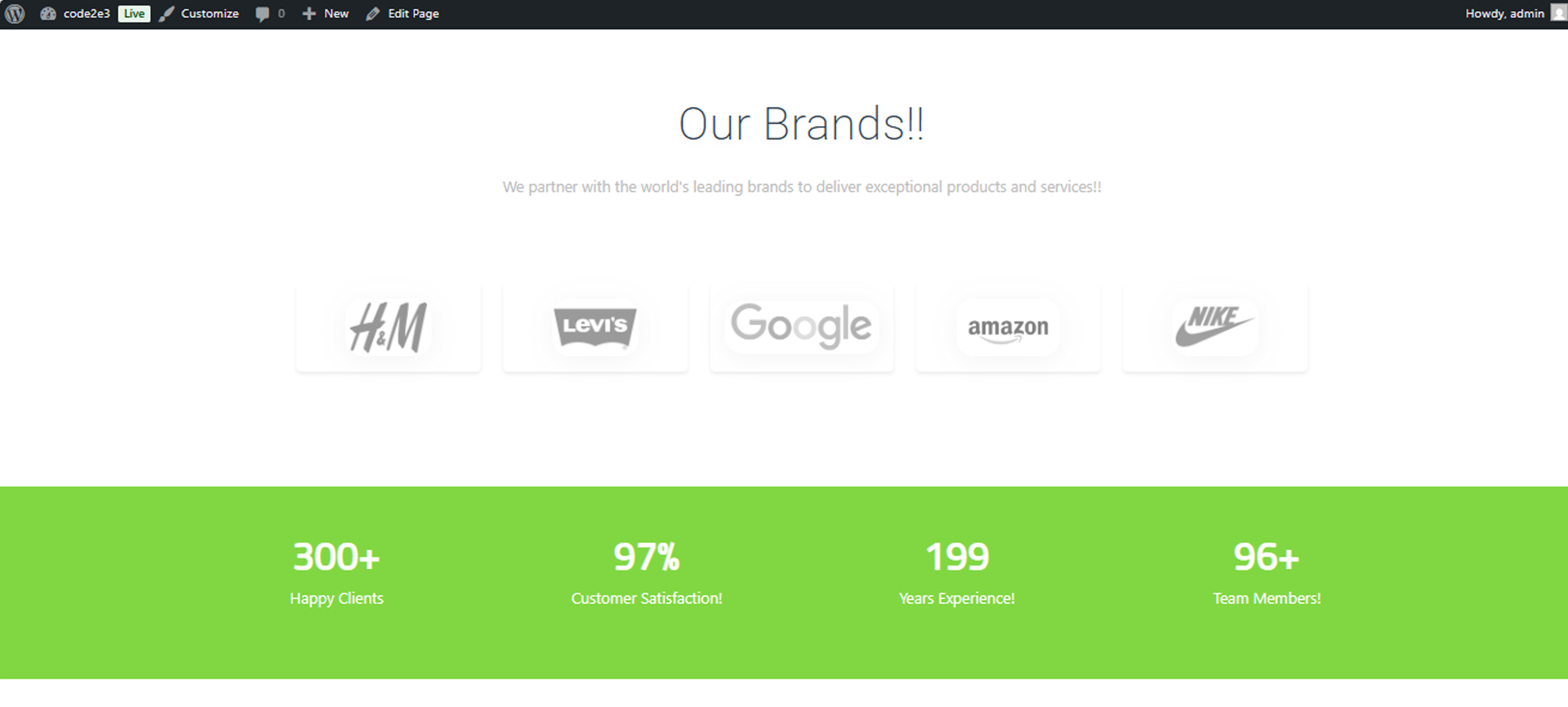
Team Section
Team members and staff information
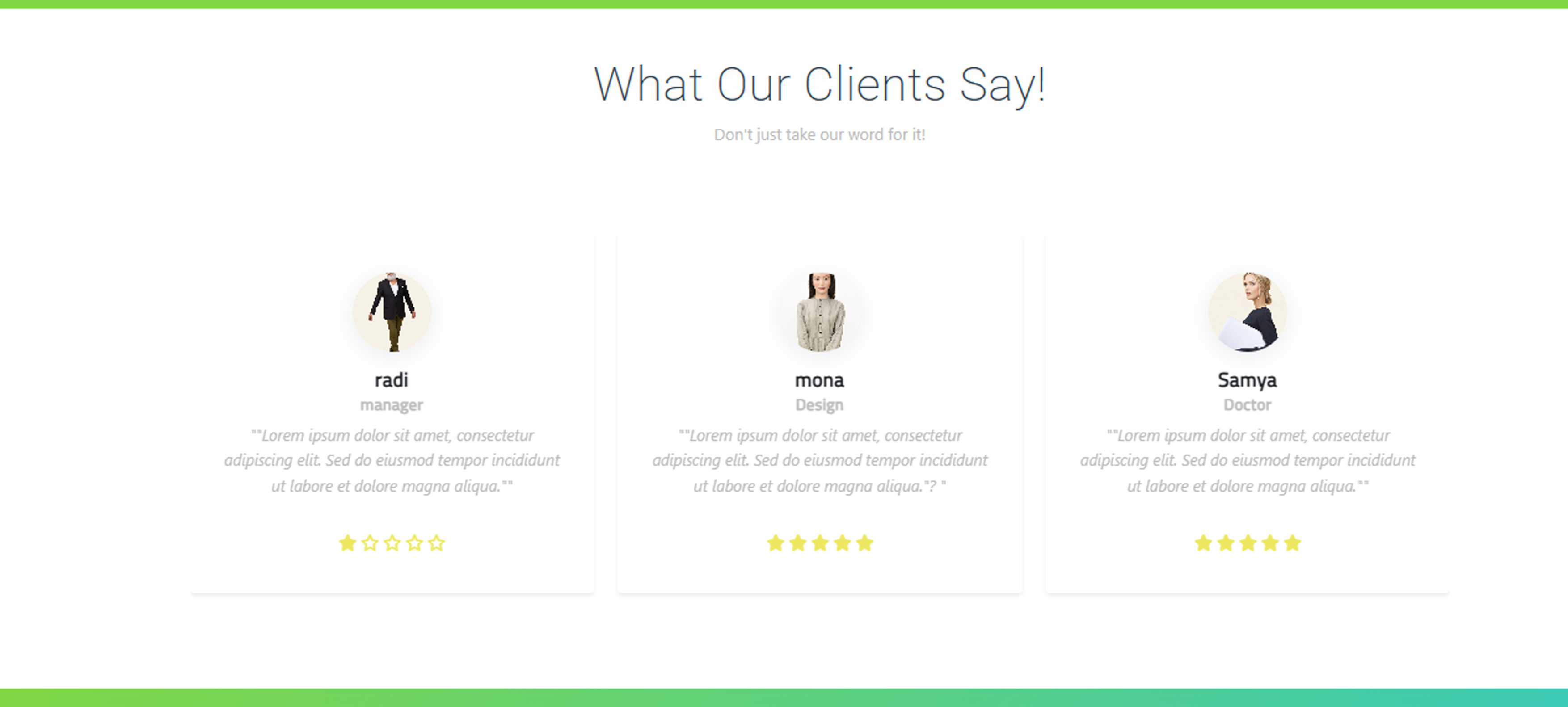
Contact Section
Contact information and form
📞 Contact & Support
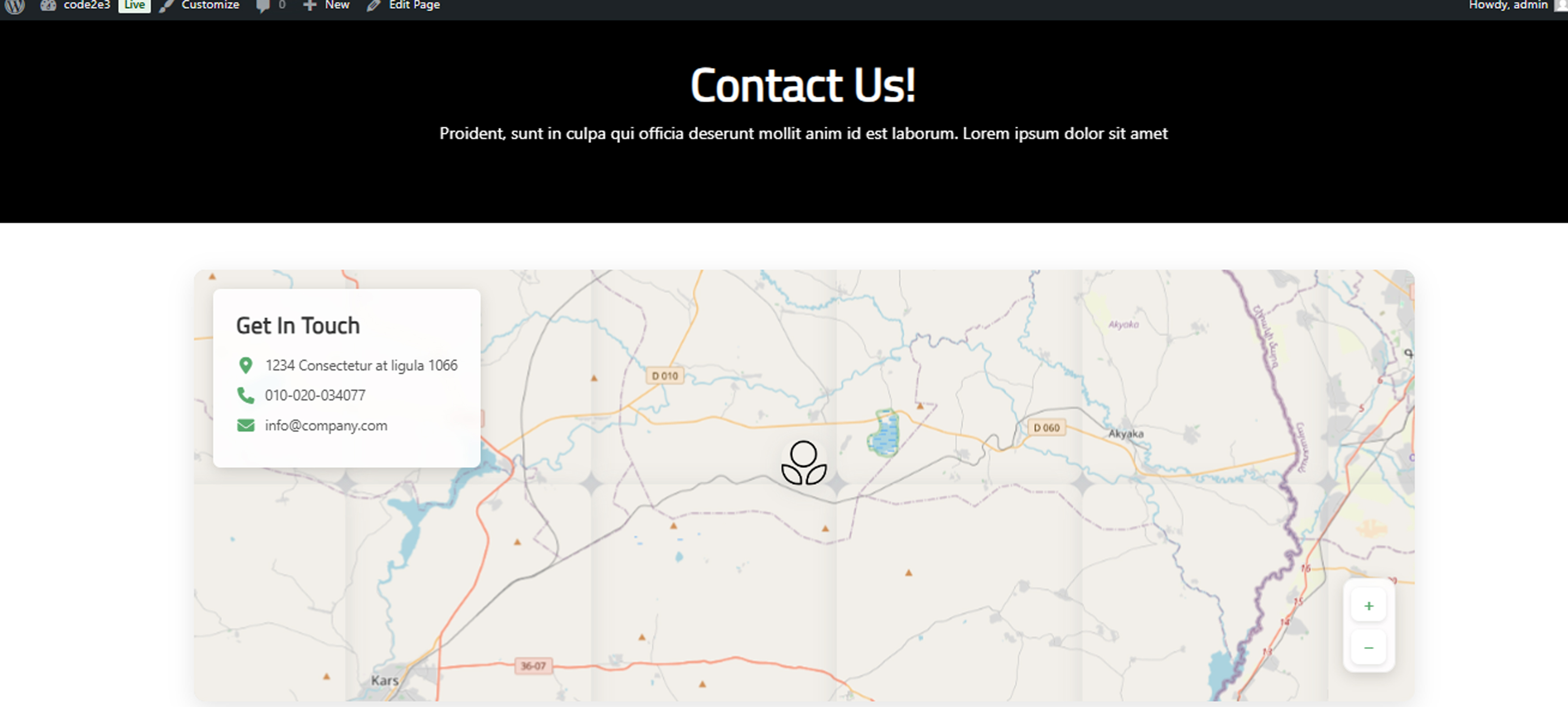
Contact Page
Contact form and business information
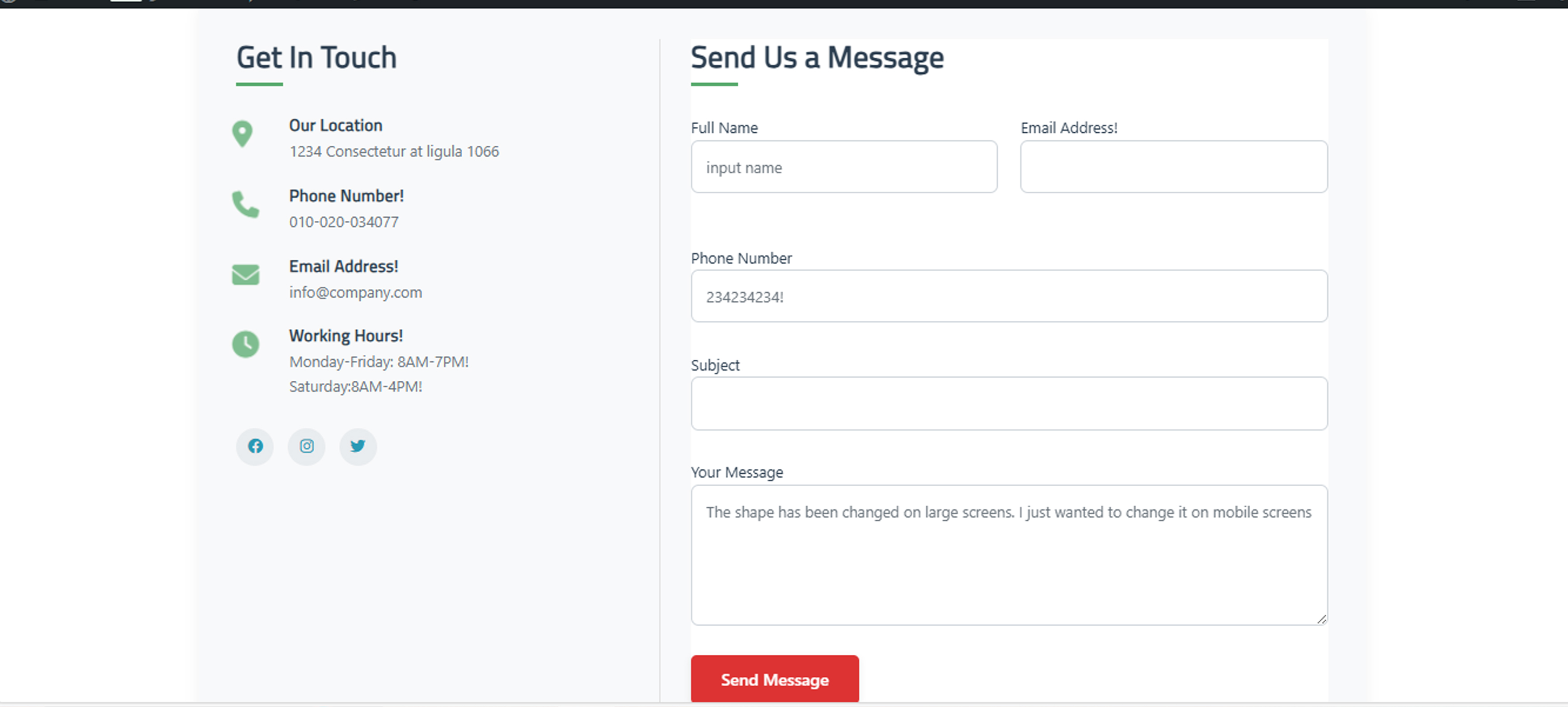
Contact Form
Customer inquiry and support form
⚙️ Database & Configuration
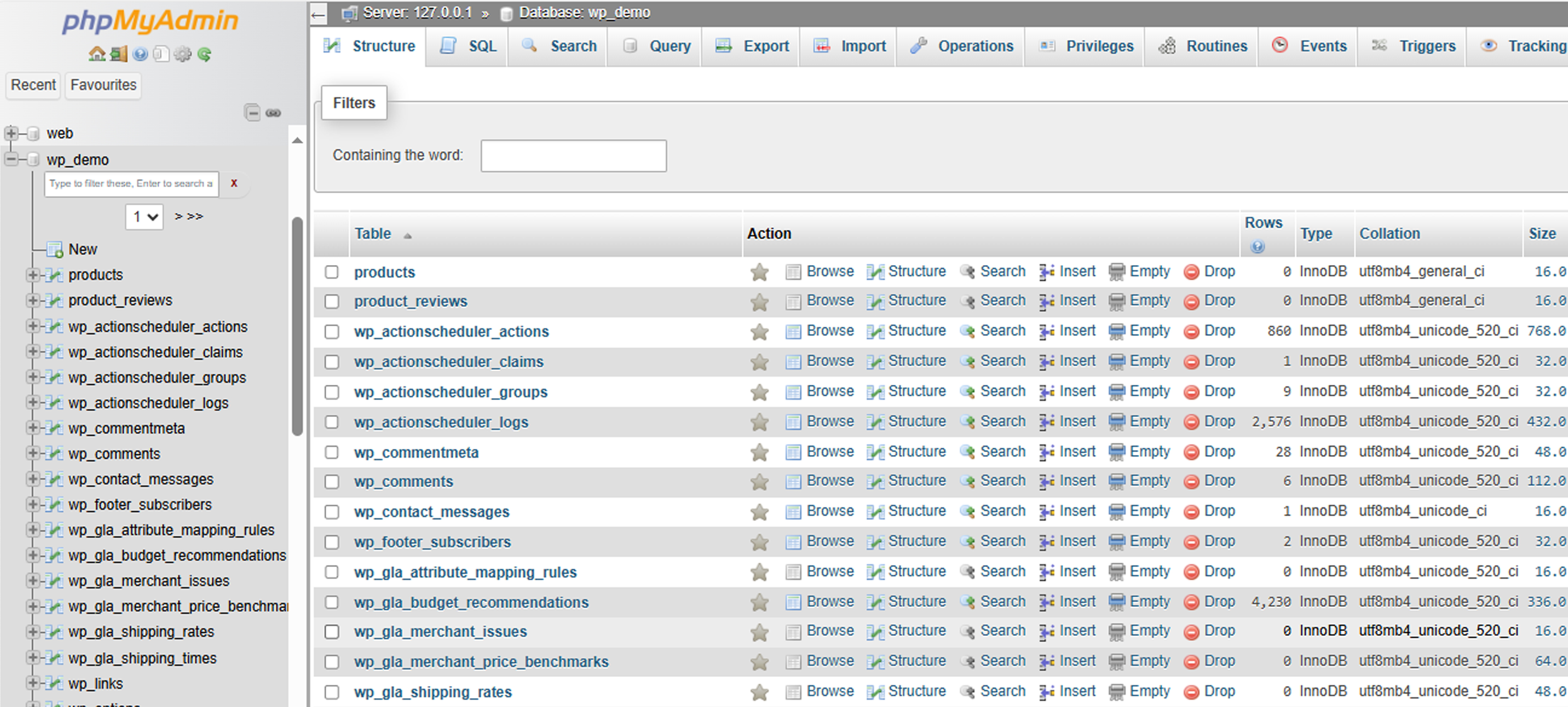
Database Configuration
WordPress database setup and optimization
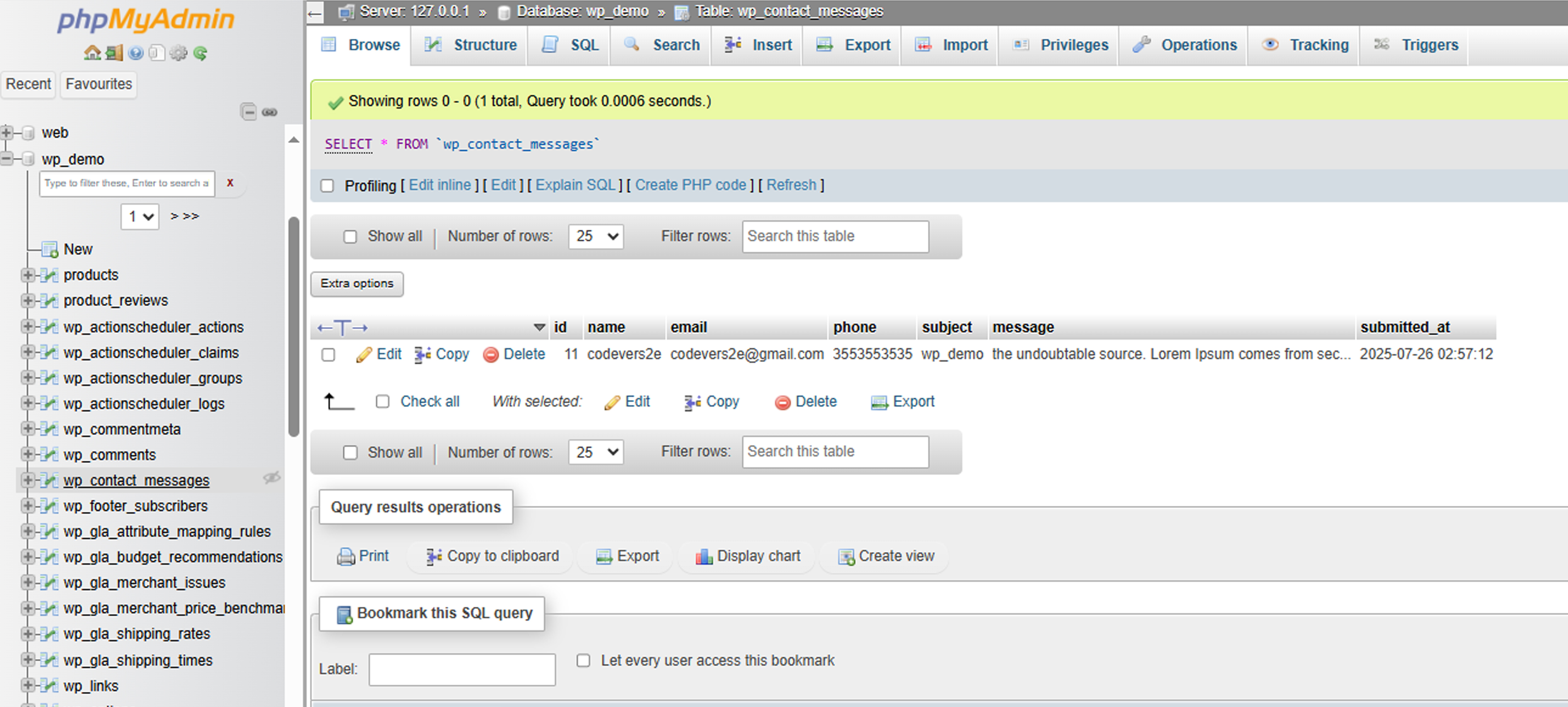
Database Management
Database backup and maintenance
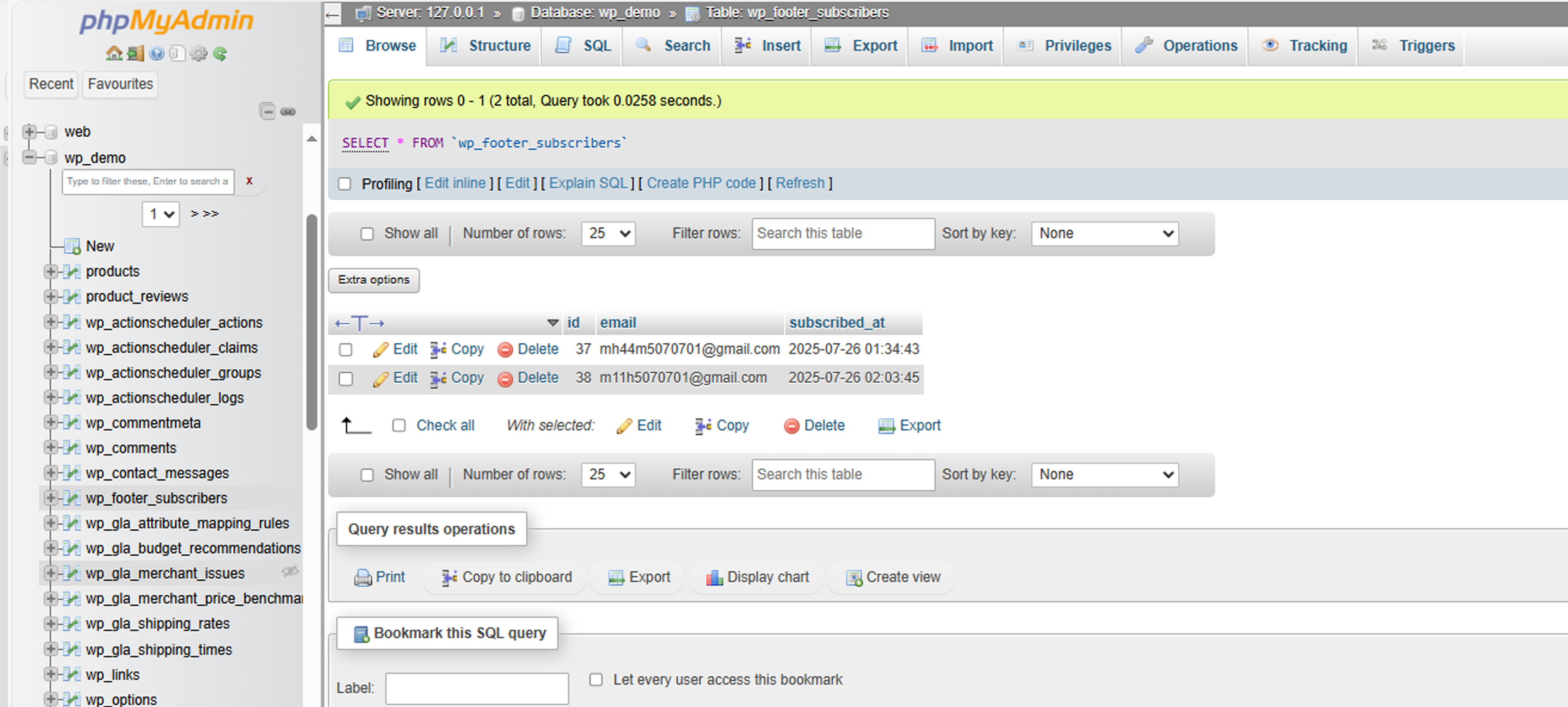
Performance Settings
Site optimization and caching settings
❓ Frequently Asked Questions
Q: How do I change the theme colors?
A: Go to Appearance → Customize → Colors to modify the theme's color scheme.
Q: Can I use this theme without WooCommerce?
A: While the theme is designed for WooCommerce, you can use it for a regular blog or business site.
Q: How do I add custom fonts?
A: Use Google Fonts or custom font files and add them through the Customizer or custom CSS.
Q: Is the theme mobile-friendly?
A: Yes, the theme is fully responsive and optimized for all devices.
Q: How do I create a child theme?
A: Create a new folder in wp-content/themes/ with the parent theme name followed by "-child" and include the necessary files.
✅ Installation Checklist
- Theme files uploaded successfully
- Theme activated in WordPress admin
- WooCommerce plugin installed and activated
- Kirki Customizer Framework installed
- Site identity configured (logo, title, tagline)
- Menus created and assigned
- Widgets configured
- WooCommerce pages created
- Products added to store
- Payment methods configured
- Shipping methods set up
- Theme customizations applied
- Mobile responsiveness tested
- Performance optimized